How to use WordPress as a website and disable blog feature? [STEP BY STEP]☑️
Here in this tutorial we will show you How to use WordPress as a website and disable blog feature.
Follow the steps to disable blogging feature in WordPress:
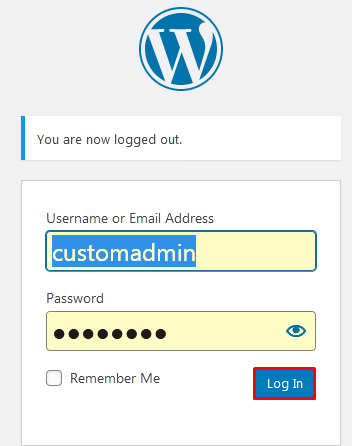
Step::1 Login to your WordPress admin panel
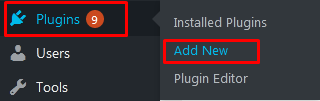
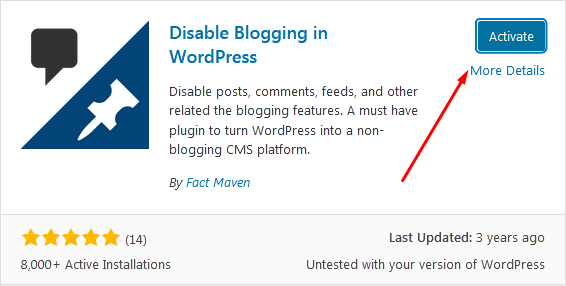
Step::2 Go to the Plugins area of WordPress and click on the “Add New” button.
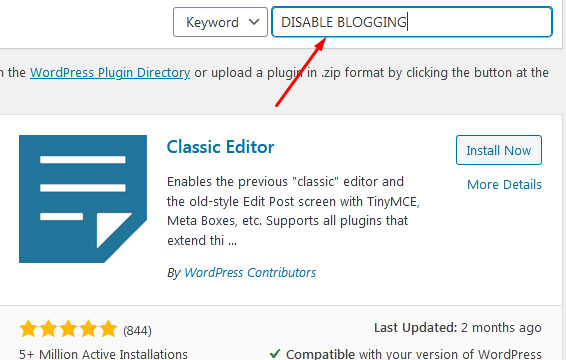
Step::3 Search for Disable Blogging in WordPress in the available search box
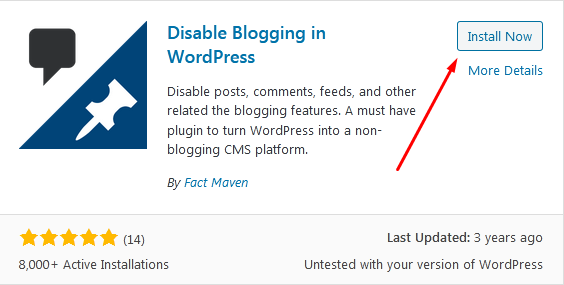
Step::4 Once you find the plugin, click on the “Install Now” button and Activate the plugin for use.
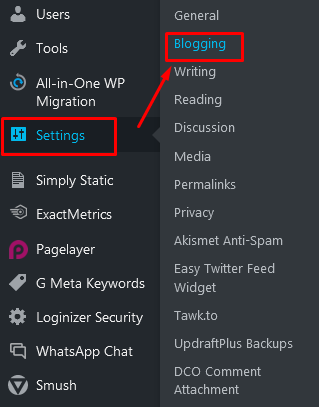
Step::5 Now on the left-hand admin panel go to Settings section and click on the “Blogging” option.
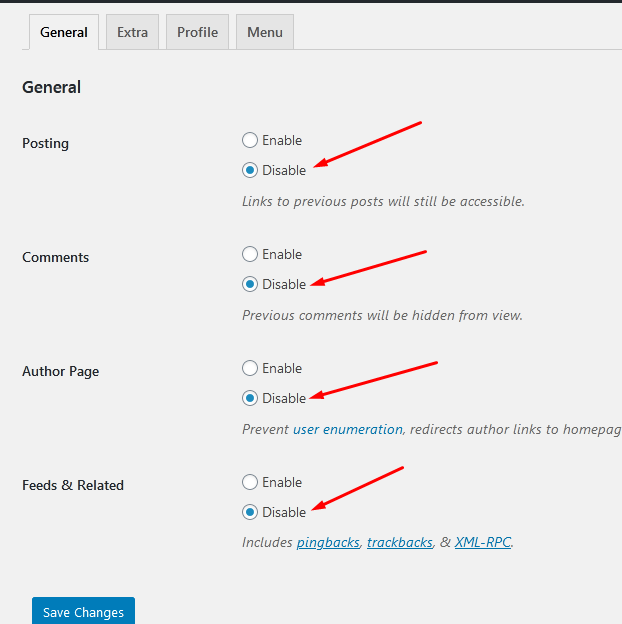
The plugin will automatically disable blog features on posts, comments, author pages, and feeds and related categories. This can be changed at any time you want.
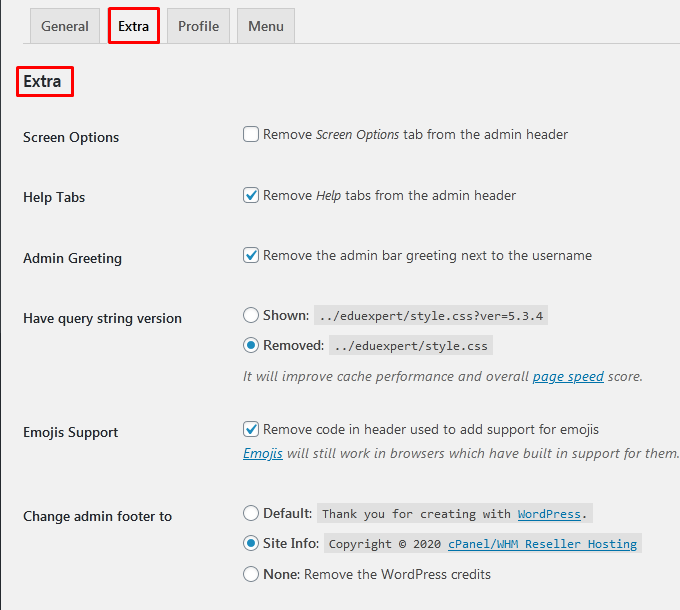
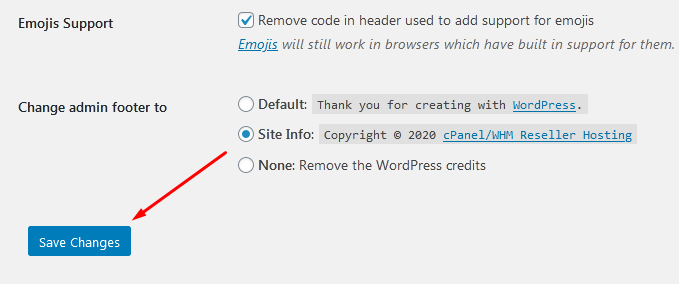
Step::6 Now go to the Extra tab. On this tab, you can change screen options, help tabs, admin greetings, the query string version, emoji support, and admin footers. Pick the best settings for your website.
Step::7 If you changed any of these settings remember to click the “Save Changes” button.
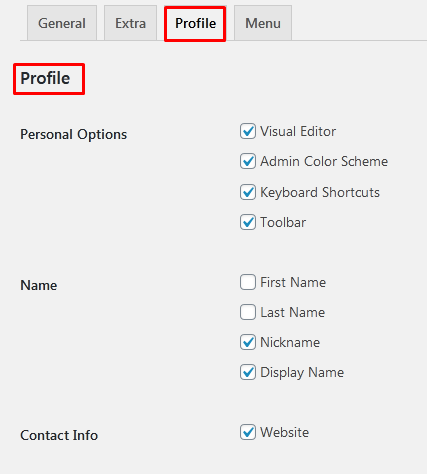
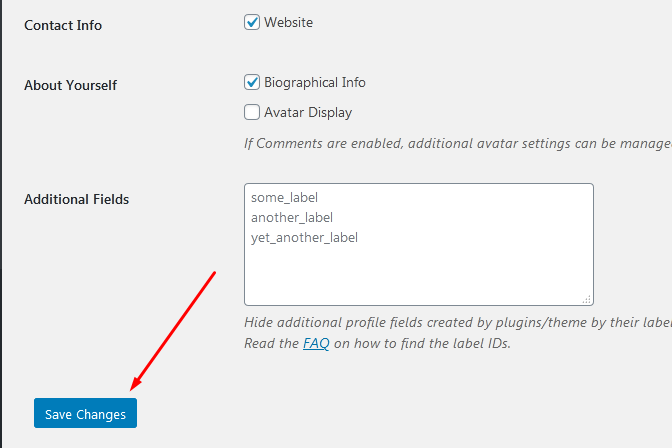
Step::8 Next, let’s take a look at the Profile tab by clicking on it. The profile tab includes personal options, name, contact information, about yourself section, and any additional fields you may want to include. Select the best options for your website.
Step::9 If you changed any of these settings remember to click the “Save Changes” button.
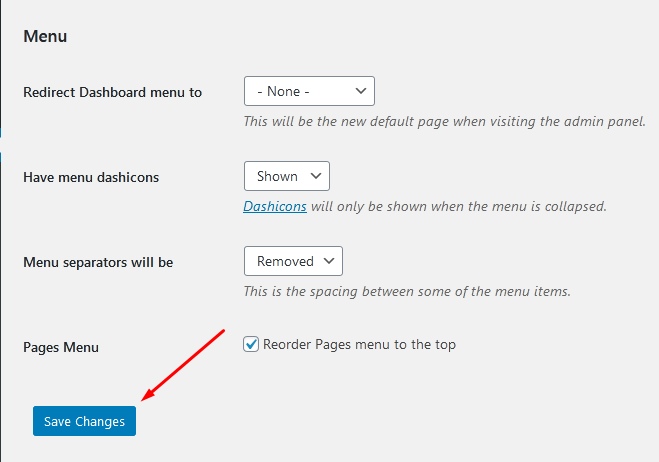
Step::10 Finally, let’s take a look at the Menu tab by clicking on it. The menu tab contains settings like redirect dashboard menu to, have menu dashicons, what menu separators will be, and page menu. Pick the best settings for your website.
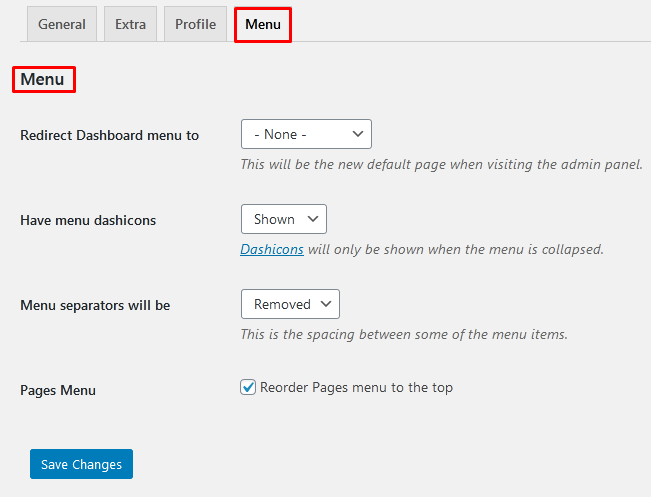
Step::11 If you changed any of these settings remember to click the “Save Changes” button.
Congratulations, you have successfully disabled all blogs features on WordPress.
Remember disabling these plugins is not the same as deleting the content. It will all still be there if you enable them.
Thanks for Reading this article
The End! should you have any inquiries, we encourage you to reach out to the Vercaa Support Center without hesitation.
