To perform any of the method, you should first login to your WordPress website dashboard.
#1. Disable Comments on Specific Page or Post
- In the WordPress admin area, scroll down to Page or Post section where you want to disable comment.
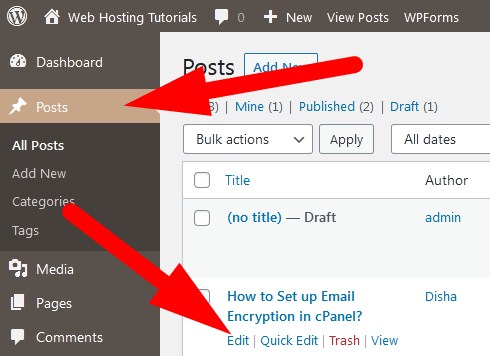
- Now, click over Edit option given with the page or post for which you want to disable comment.
- You will be directed to the post editor page. Click over Settings icon and scroll down to Discussion section.
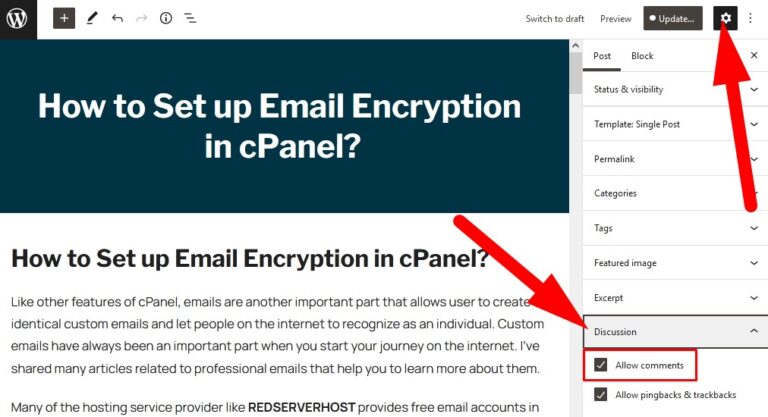
- Uncheck the box, Allow Comments and click over Update.
- It will ask for confirmation to save your changes. Click over Save and done.
#2. Disable Comments on all the Pages and Posts
To disable comments from all the post or pages of your WordPress website, go through the below mentioned steps.
- From the WordPress dashboard, scroll to Posts or Page section from where you want to disable comments.
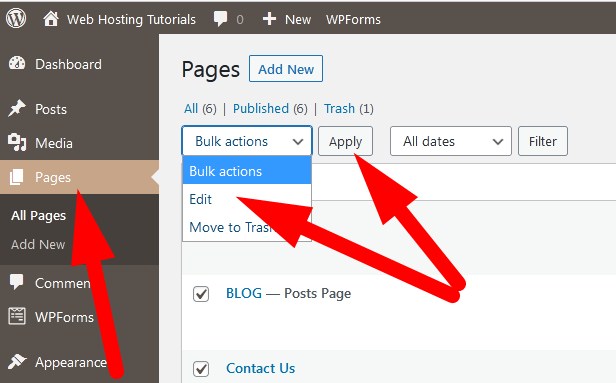
- List of all the pages will appear. Now, select all the pages.
- From the Bulk Actions, click over Edit from the drop down and Apply.
A box will open. Switch to Comments section and select Do Not Allow from the drop down.
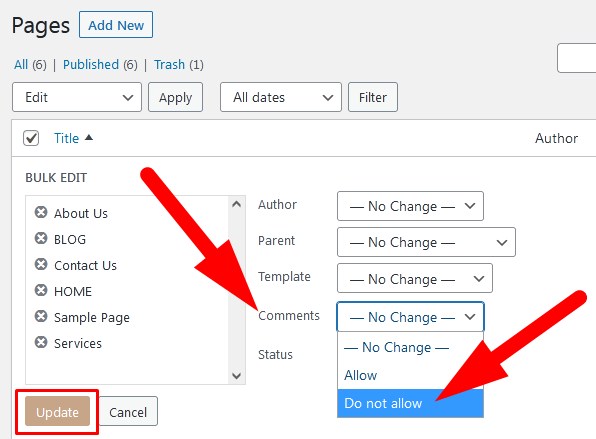
- Click over Update to save your changes.
#3. Disable Comments for Future Posts
The above discussed procedures were to manage the enabled comment setting on your WordPress website. If you did not want users to comment directly on any post or page you create in future, then you can follow the below mentioned steps.
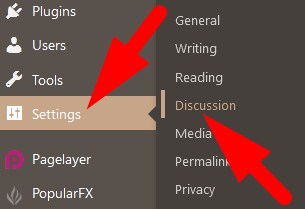
- In the WordPress admin area, scroll down to Settings section.
- Now, go to Discussion section. You will be directed to next page.
In the Default post settings section uncheck the box as directed in the below image.
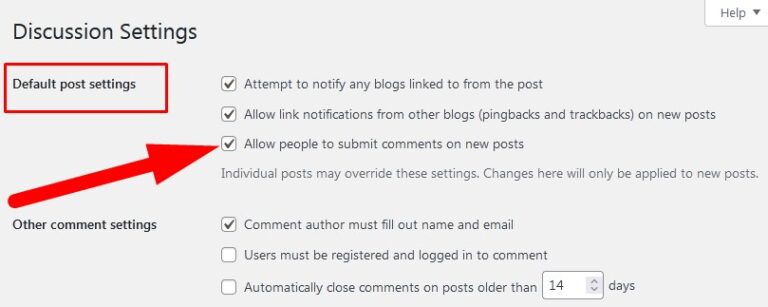
- Scroll down and click over Save Changes.
You will get the confirmation Settings saved.
#4. Disable Comments Completely
Now, we will go through the simplest procedure with which you can completely disable comments on your WordPress website.
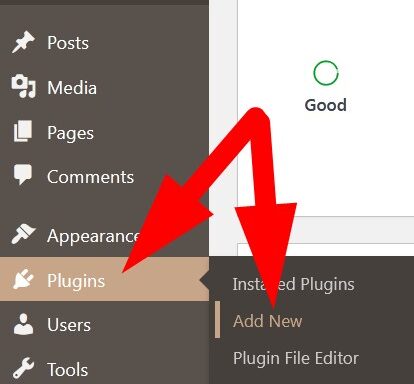
- In the WordPress dashboard scroll down to Plugins section and click over Add New.
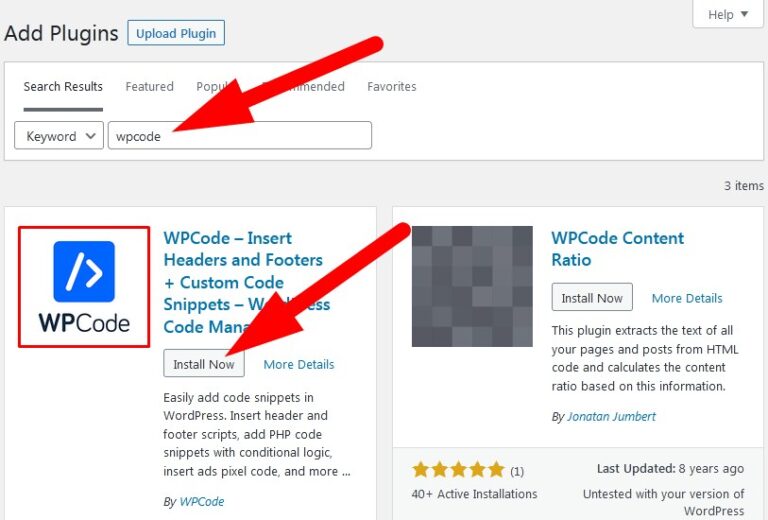
- On the next page, search for wpcode and you will find a plugin related to that.
- Click over Install Now to install the plugin and then Activate it.
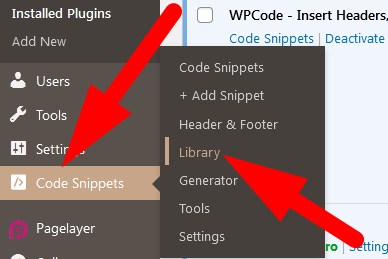
Now on the left panel, scroll down to Code snippets and then select Library.
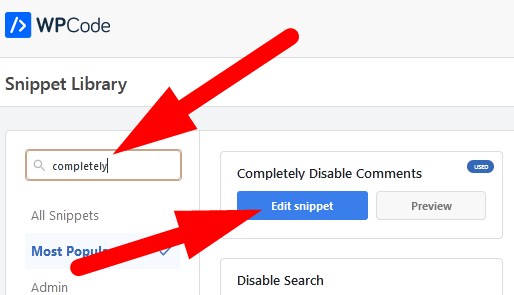
- On the Snippet Library page, search for completely disable and you will find Completely Disable Comments option.
- Click over Edit Snippet and proceed.
Now, editor page will open. Here, everything would be set. Scroll the Inactive bar to activate the plugin.
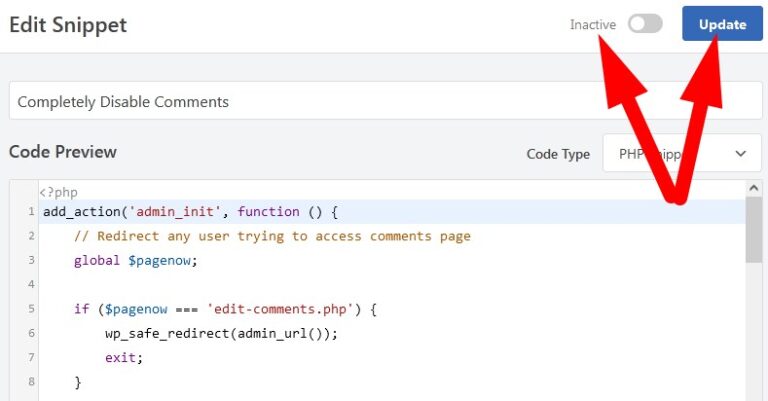
- Click over Update and proceed.
Now, WPcode will disable all comment related features from your WordPress website.
The End! should you have any inquiries, we encourage you to reach out to the Vercaa Support Center without hesitation.
