How to Disable File Editing in the WordPress Admin Panel? [STEP BY STEP]☑️
Today in this Tutorial we will walk you through the steps to disable file editing option from WordPress admin panel. If you scan your WordPress admin panel, you may find an option to edit your WordPress theme’s coding files, and so does for the plugins.
Let me tell you that it is possible that hackers can inject some malicious code to these files and the website may get compromised. Hence it’s essential to stop such access directly to the coding files of your WordPress website through its admin area.
That’s is why whenever you want to edit something, it’s better to use cPanel.
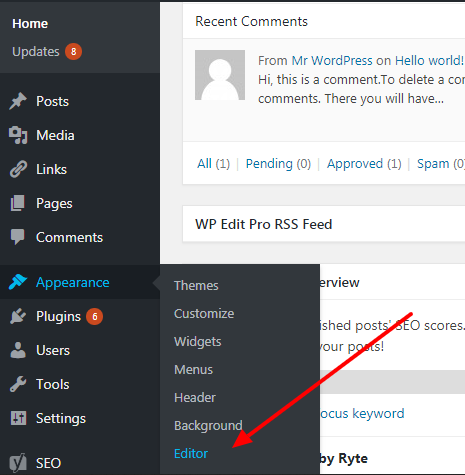
Let me show you a screenshot to find the editing option. Login to your WordPress admin panel, go to Appearance>>Editor, this editor option is to modify your WordPress theme code.
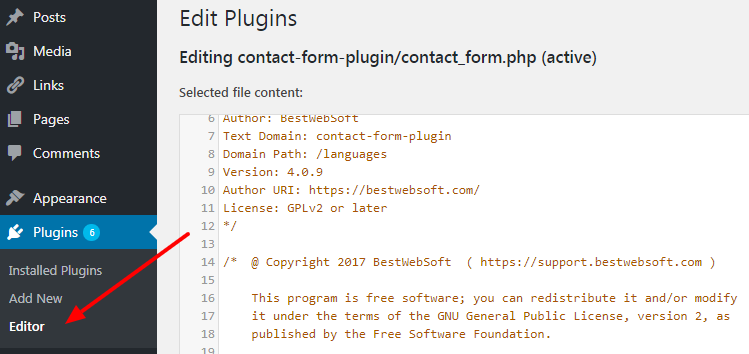
For plugins, go to Plugins>>Editor. You can see an example of the code editor below.
In this tutorial, you’re going to learn about removing these editors from the WordPress dashboard, so that even if someone hacks your website by brute force attack, they can’t mess up with the coding files.
Edit the wp-config.php File to Stop File Editing
The .htaccess and wp-config.php are the two most vital files of a WordPress site. In most of the cases, whenever you require to add or improve any functionality you will need these files.
Follow these steps to remove the file editing option from the WordPress admin panel:
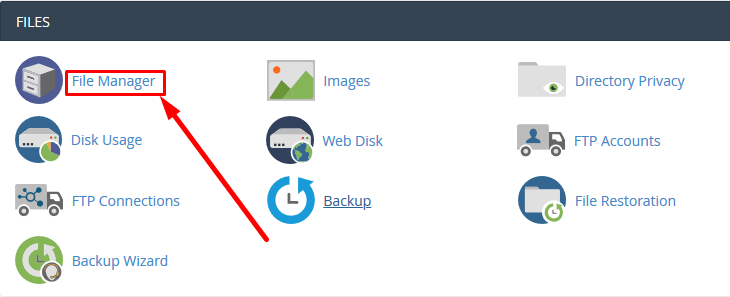
Step::1 Open cPanel and look for the File Manager.
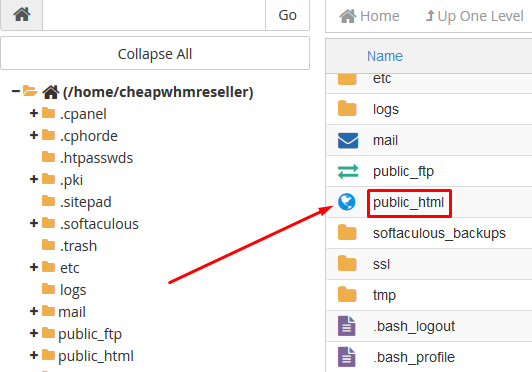
Step::2 Now open the public_html directory
Step::3 Search for the wp-config.php file by scrolling down and right-click to Edit.
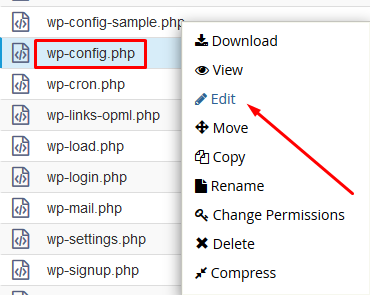
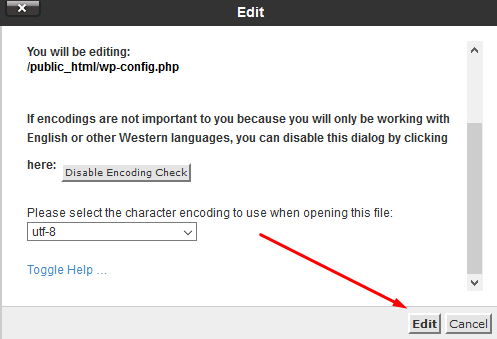
Step::4 Once you choose to Edit, you can see a popup to confirm the editing of this file. It’s a necessary step because cPanel authenticates your access. Click Edit; a new tab opens in the browser.
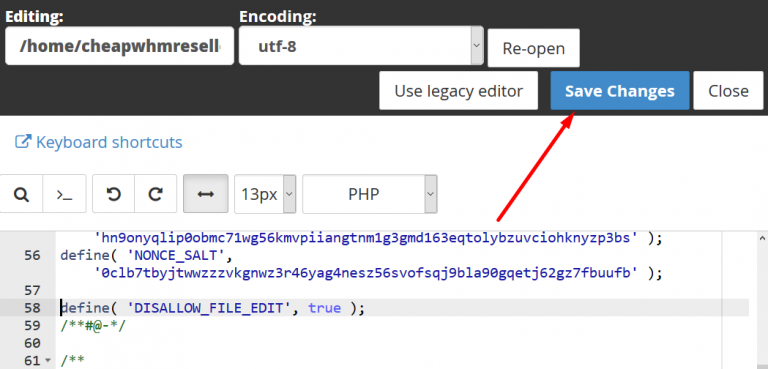
Step::5 You can see a bunch of coding lines. Well, no need to be scared, all you need is copy the code and paste it at the bottom of all the other codes of the file.
define( 'DISALLOW_FILE_EDIT', true
Step::6 Click Save Changes from the top-right corner of the screen to save the file.
Step::7 Now login again to the admin panel of your website and check if you see the Editor option for themes and plugins. If not, you have successfully disabled the file editing from WordPress dashboard.
From now onwards, no one will be able to edit the coding file of your WordPress themes and plugins, not even you.
Hope this blog helps you to remove the file editing option from the WordPress admin panel.
The End! should you have any inquiries, we encourage you to reach out to the Vercaa Support Center without hesitation.
