WordPress is the best Content Management platform that is liked and used by millions of user on the internet. It is preferred as the best to launch any kind of website. This is because of its features and themes and plugins that not only manage the presentation of the website but also manage its security as well.
In this tutorial, we will explain the steps to install a Plugin to manage the security of the WordPress website. Let us go through in detail procedure to install and set up All in One Security Plugin in WordPress.
#1. How to Install All in One WP Security plugin?
To install WP Security plugin, follow the below given steps.
- Login to WordPress dashboard of your website.
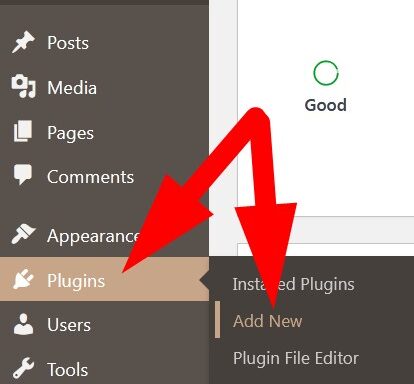
- Scroll down to Plugins section on the left. Click over Add New and proceed.
- In the search bar, type all in one. List of Plugins will appear.
- Click over Install Now given next to All In One WP Security & Firewall as directed in the image.
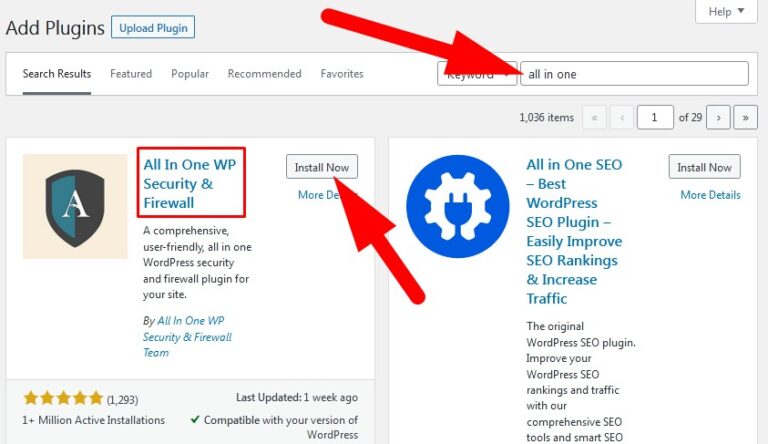
- fter installation, Activate the plugin.
You have successfully installed the plugin. Now, in the Installed Plugins you will find All in One WP Security plugin and in the left panel WP Security option available.
#2. How to Set-Up All in One Security plugin?
Now, after installation, you need to set-up the security plugin. To do the same, follow the below mentioned procedures.
- In the WordPress dashboard. Scroll down to WP Security option and select Dashboard.
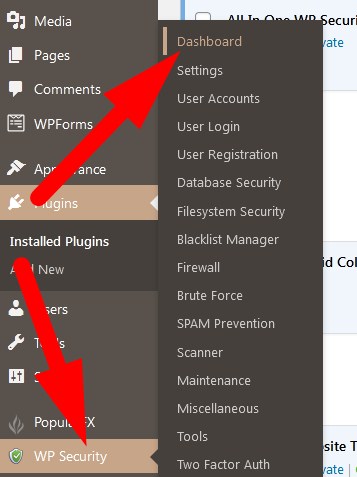
You will be directed to next page where a notification will appear on the top. Click over Set-up Now.
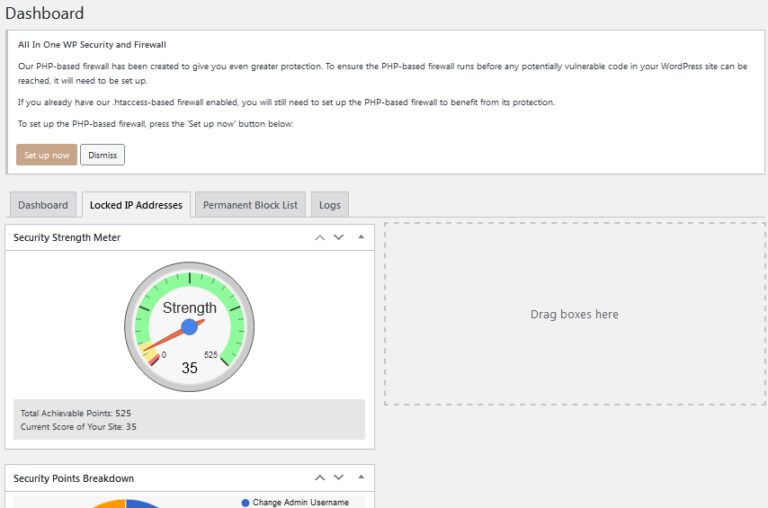
- You will receive a confirmation message that “Your firewall has been installed with the highest level of protection”.
- Now on the dashboard, scroll down to Critical Feature Status and manage each feature on by one.
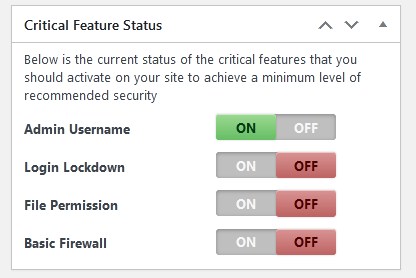
- Admin Username: In this section, you can change the Username to protect account login details. Here, you can manage, Display Name and check Password strength as well.
- Login Lockdown: This section allows user to manage login attempts from outside. It includes multiple sections.

You can whitelist IP or list of IP Addresses as well. Click over Save Settings.
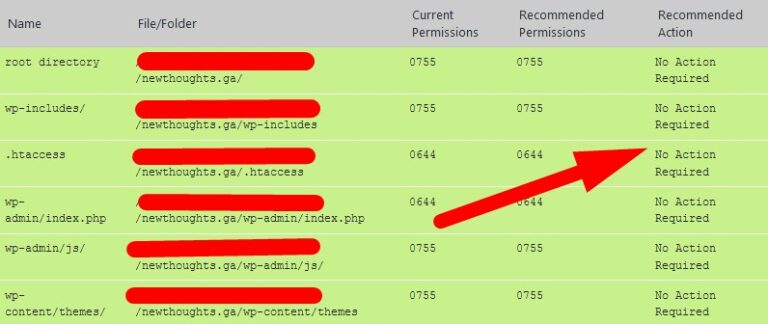
- File Permissions: You will be directed to Filesystem Security page. From here, you can set the file permission of WordPress files and directories. If there is no changes required then you will get a statement as shown in the image.
- Basic Firewall: In this section, user can modify the changes and activate some basic firewall settings for the website.
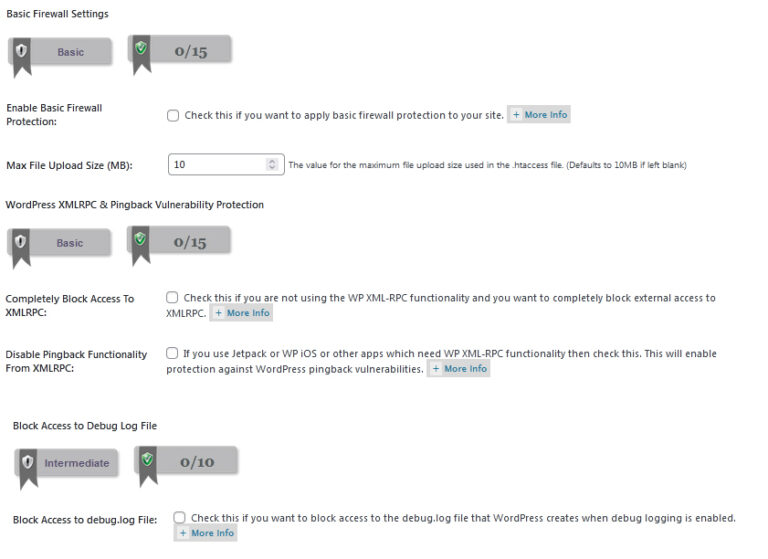
- Click over Save Settings on each page to save your changes.
User can also manage Spam Prevention, Database Security, Blacklist Manager to manage IP Addresses, Scanner to manage malware, Two Factor Authentication etc.
WP Security Plugin has almost all the features to manage the security of your WordPress website. It can be said that with All in One WP Security plugin secures your website and its data.
The End! should you have any inquiries, we encourage you to reach out to the Vercaa Support Center without hesitation.
