How to Enable WordPress Error Logs Using wp-config.php? [EASY GUIDE]☑️
Do you want to set up WordPress error logs in wp-config file? The wp-config file in WordPress not only controls your WordPress site settings, it is also a very a useful debugging tool to help you find and fix errors. In this article, we will show you how to set up WordPress error logs in the wp-config file.
The wp-config.php file is a WordPress configuration file that contains important WordPress settings.
Steps to enable WordPress error logs using wp-config:
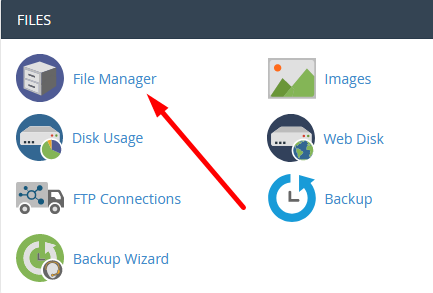
Step::1 First, you will need to edit your wp-config.php file. You can access it by connecting to your website using an FTP client like Filezilla or File Manager app in cPanel.
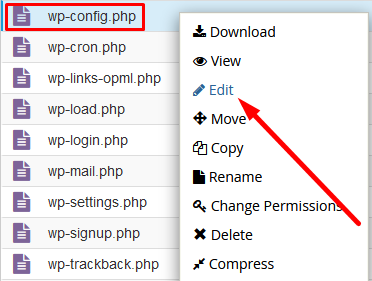
Step::2 Go to public_html and Right-click on the wp-config.php file and choose an Edit option.
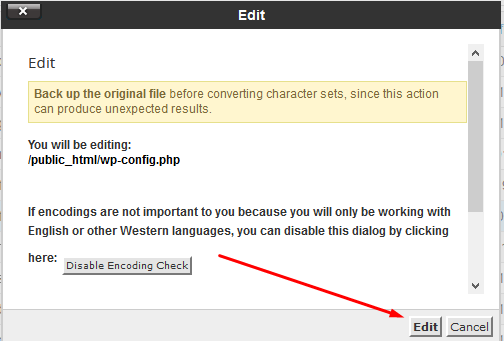
A popup appears for encoding confirmation. Click on the Edit button to continue.
Step::3 A new tab opens up in the web browser, where you can see codes of the file. Look for the line that says ‘That’s all, stop editing! Happy blogging/publishing.’
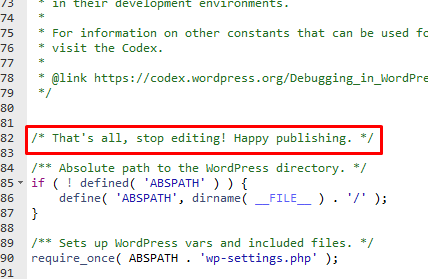
Just before this line you need to add the following code:
define( 'WP_DEBUG', true );
define( 'WP_DEBUG_LOG', true );
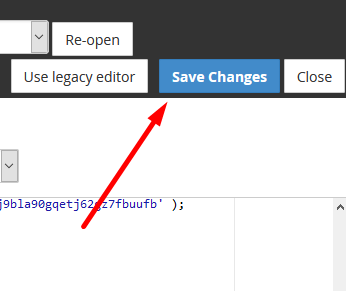
Step::4 Click on the Save Changes button and close the file.
Reviewing your WordPress Error Logs?
To review your WordPress Error Logs you need to go to /wp-content/ folder and inside it your will find a file called debug.log.
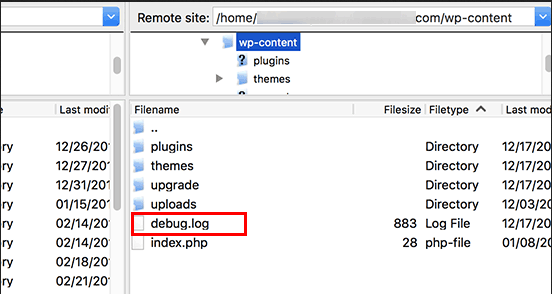
You can download, view, or edit this file. It will contain all WordPress errors, warnings, and notices that were logged.
The End! should you have any inquiries, we encourage you to reach out to the Vercaa Support Center without hesitation.
