How to Disable XML-RPC in WordPress with .htaccess? [EASY GUIDE]☑️
Here in this tutorial we will provide you information to make you learn how to disable XML-RPC WordPress file. The XMLRPC is a system that allows remote updates to WordPress from other applications.
About | XML-RPC
In simple terms, XML-RPC is a feature on WordPress that enables you to send data from another device to your WordPress site. Using this feature, you can make a remote connection with your site using a smartphone. For instance, you can publish a post from the WordPress mobile app to your WordPress website.
So in technical terms, the xmlrpc.php file enables a remote procedure call that uses XML to encode the message to be sent over HTTP. Using this, you can exchange information between devices or computers across. When you send xmlrpc.php requests to your website, WordPress will authenticate the action with a username and password. This is a very basic security check and we do not recommend it for such processes.
All these factors contribute to making brute force attacks possible. A brute force attack is one wherein hackers use bots to try to guess your username and password. Because the xmlrpc.php file can handle large amounts of data, hackers can send a large number of passwords at a time. Not everyone will need xmlrpc.php turned on within WordPress for it to function properly.
In fact, a lot of you may never use this feature at all. If you’re worried about additional security issues, it’s in your best interest to disable this feature until you absolutely need it.
How to disable XML-RPC in WordPress
Now let’s begin with the manual method of disabling XML-RPC on your WordPress site:
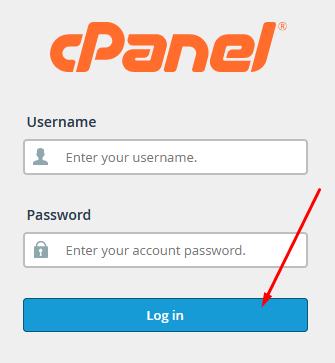
Step::1 To access your WordPress files, login to your cPanel.
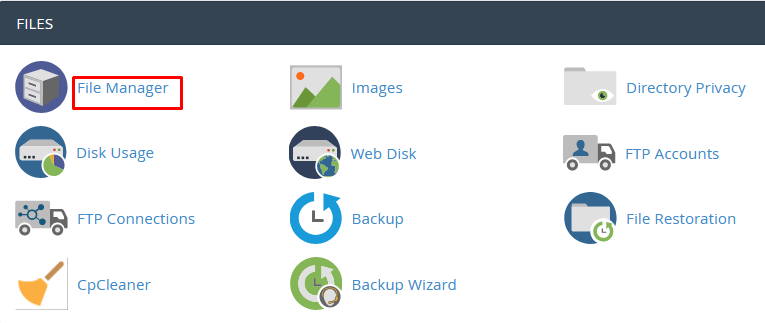
Step::2 Under that, you can access ‘File Manager’.
Step::3 Next, in File Manager, your website’s folders should be under the folder named ‘public_html’. Here, you’ll see three main folders – wp-admin, wp-content, and wp-includes.
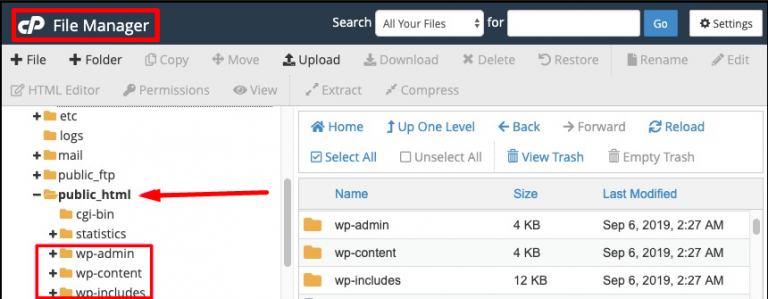
Step::4 You should see a file named ‘htaccess’ here. If you don’t, you can use the search bar on the top-right of the screen to look for it.
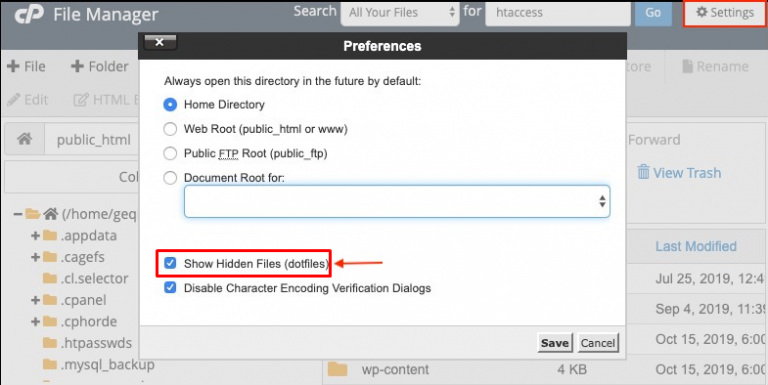
Tip: If your website has a .htaccess file but you can’t see it, visit settings and click on ‘show hidden files.’
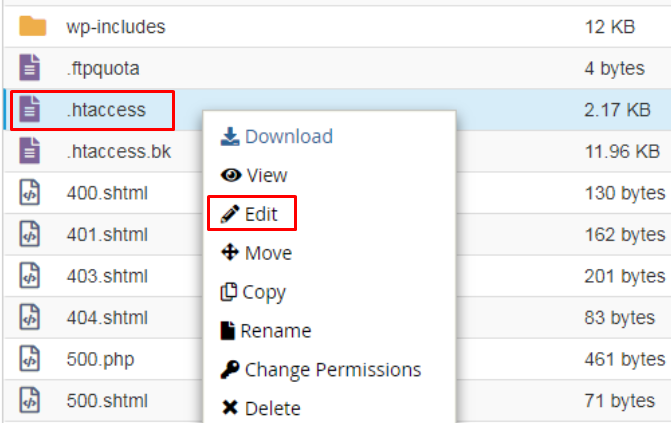
Step::5 Open the .htaccess file by right-clicking and choosing ‘Edit’.
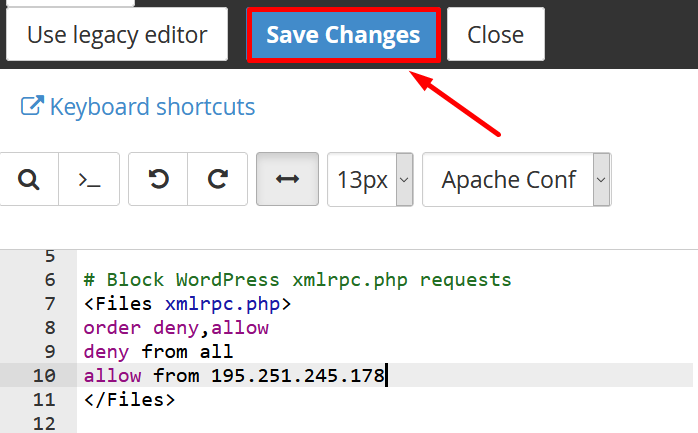
Step::6 To restrict access of XML-RPC, paste the following code to this file:
# Block WordPress xmlrpc.php requests
<Files xmlrpc.php>
order deny,allow
deny from all
allow from xxx.xxx.xxx.xxx
</Files>
Step::7 In the 5th line ‘allow from xxx.xxx.xxx.xxx’, replace the x’s with your IP address, if you would like to retain XML-RPC from a particular IP. Otherwise, you can simply delete this line.
Step::8 Click on Save Changes tab and close the file. The code disables XML-RPC.
Now that you’ve disabled the XML-RPC function in WordPress, you’ve made your Website one level more secure. But there are many more WordPress security measures you should implement in order to keep your website completely protected from hackers.
The End! should you have any inquiries, we encourage you to reach out to the Vercaa Support Center without hesitation.
