WordPress is known for its features that allows user to manage their website efficiently. Apart from Plugins and Themes, there are much more features that help you to manage the posts or pages of your WordPress website. Today, in this tutorial we are going to discuss about one of the feature of WordPress that allows user to schedule your Posts.
This tutorial includes:
#1. Why Schedule Posts in WordPress?
There are several reasons to schedule posts in WordPress. Some are listed.
- It is always suggested that to have a successful blog you have to posts content on regular basis. So, in order to manage that you can write articles at your convenient and then schedule them to be published at particular date and time.
- Each website has its peak time when the traffic is much more and you can schedule your posts accordingly. Thus, the another reason to schedule your posts is to reach more visitors and increase more page views.
Hope the points given above better explained the reason to schedule posts in WordPress. Now, let us see the procedure for the same.
#2. How to Schedule WordPress Posts in Block Editor?
Let us go through the steps to schedule pots in Block Editor.
- Login to WordPress dashboard and go inside Posts section.
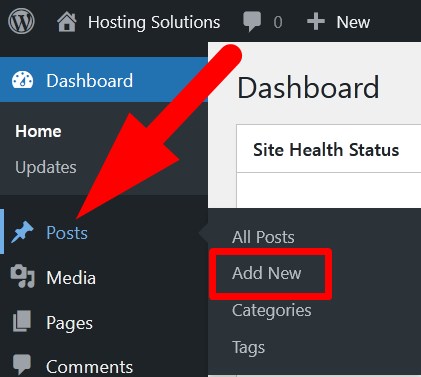
- Add New Posts and complete your article. Now, in the right panel, go to Post section.
- Scroll down to Publish where you find Immediately, click over it.
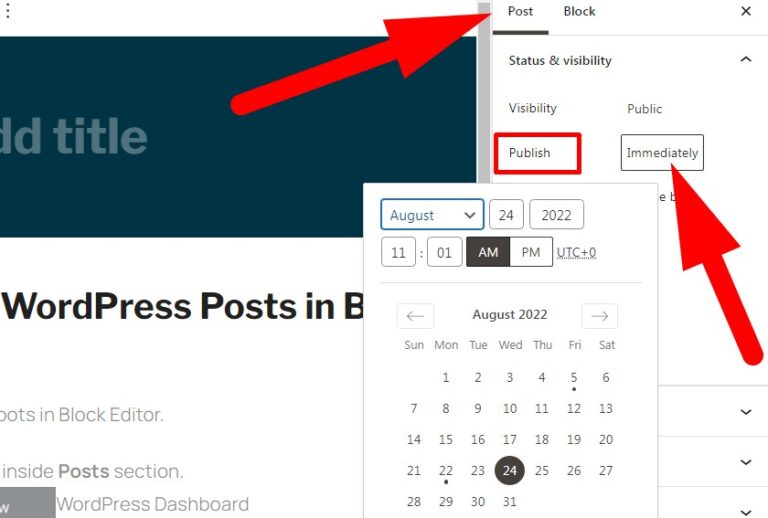
- As you click over Immediately, calendar will appear as given in above image.
- From here, you can select the date and time to which you want to schedule your posts.
- Now, the Publish button changes to Schedule one. Click over it and done.
#3. How to Schedule WordPress Post in Classic Editor?
You can schedule posts in Classic Editor as well by following the below mentioned steps.
- Go to WordPress admin are and then Posts section.
- Add New Posts in Classic Editor.
- Now, on the right side of the page, you will find Publish option with Immediately written next to it.
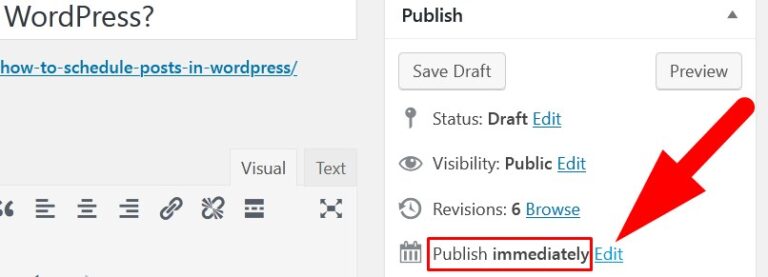
- Click over Edit as directed in above given image.
- You will see the date and time options. Change the date and time as required and OK.
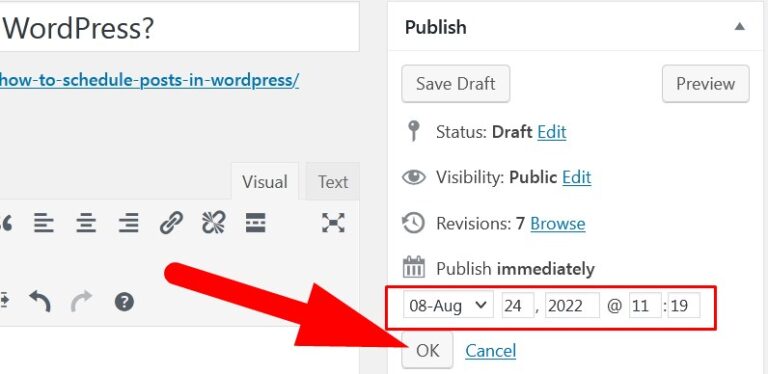
- Now, the Publish button changes to Schedule one. Click over it to save your changes.
Your blog post would be posted according to scheduled date and time.
The End! should you have any inquiries, we encourage you to reach out to the Vercaa Support Center without hesitation.
