- Login to your cPanel account.
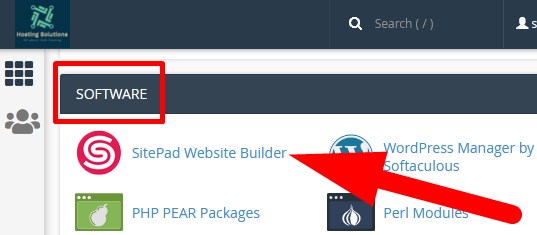
- Go inside SOFTWARE section and select SitePad Website Builder.
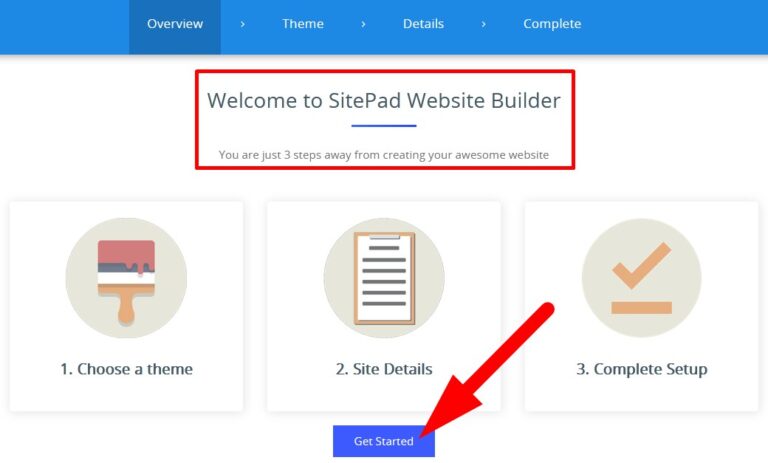
On the next page, you will see the directions which you have to follow to create website with SitePad. Click over Get Started and proceed.
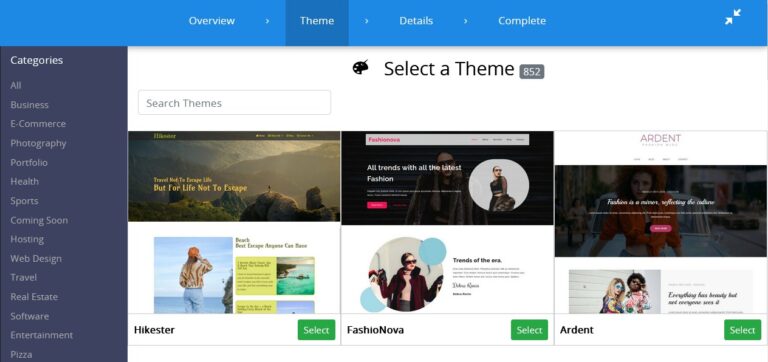
On the next page, Select a Theme as per your choice and proceed.
- You will be directed to next page where you have to enter your site details. Enter the credentials as directed below.
- Site Details: Enter the credentials as directed.
- Site Address: Select the Protocol, Domain and directory to create the website address.
- Admin Email: In this section, enter the details of website admin.
- Site Title: Enter the name which will appear on your website.
- Description: Brief description of your website.
- Site Language: Select the language of your website.
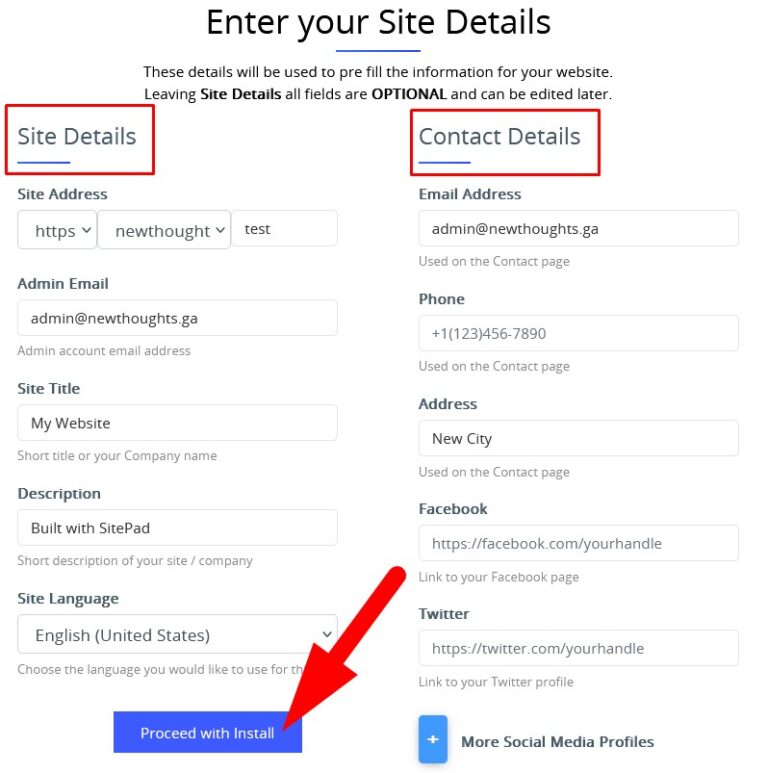
- Contact Details: Enter the details as directed.
- Email Address: Enter the email which will appear on your website.
- Phone: Contact number to display on website.
- Address: Address at which your visitors found you manually.
- Facebook: Facebook Profile or Page related to your website.
- Twitter: Twitter account to which your visitors connect with you.
- More Social Media Profiles: Click over it to add other social media platforms.
- Click over Proceed with Install to install website on the selected domain.
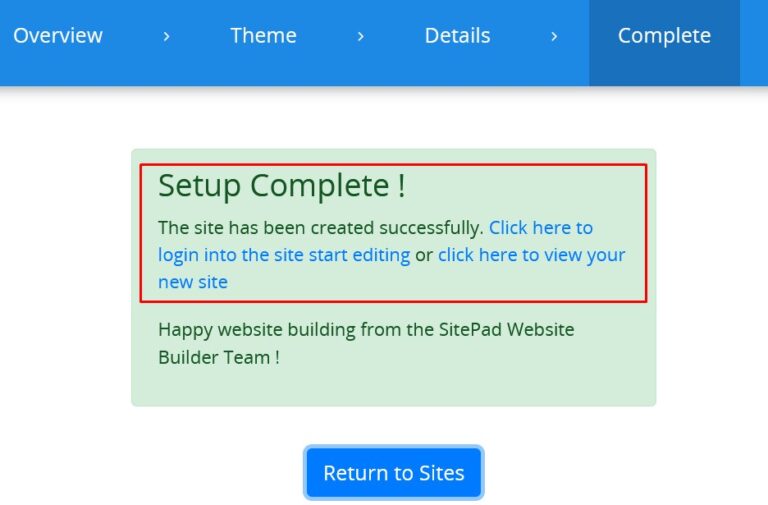
Now, you will be directed to the confirmation page. From here, you can visit or edit your website.
he End! should you have any inquiries, we encourage you to reach out to the Vercaa Support Center without hesitation.
