Monitoring Email Delivery in cPanel

thumb_up 1  ·  sell Monitoring, Email Delivery, cPanel

Let us go through the procedure in detail.

  • Login to your cPanel account.
  • Navigate to EMAIL section and select Track Delivery from the list.
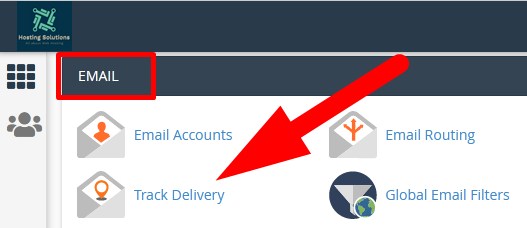
     

  • You will be directed to the next page. You can track email delivery from here.
  • Click over Show All to track email delivery of all your email accounts.
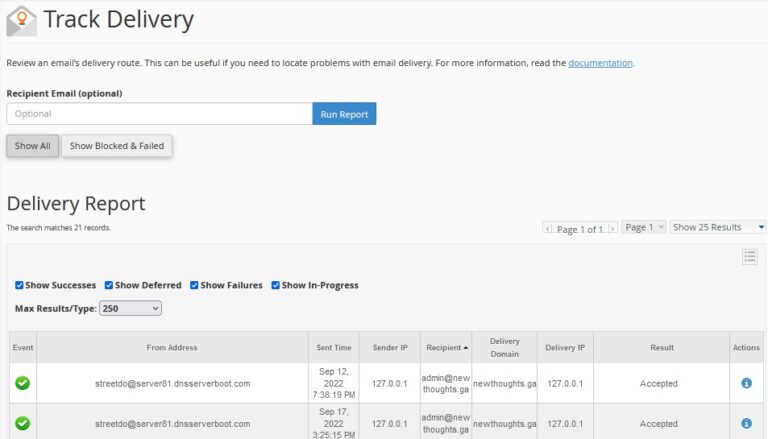
     

  • Click over Show Blocked & failed to track the status of failed or blocked emails.
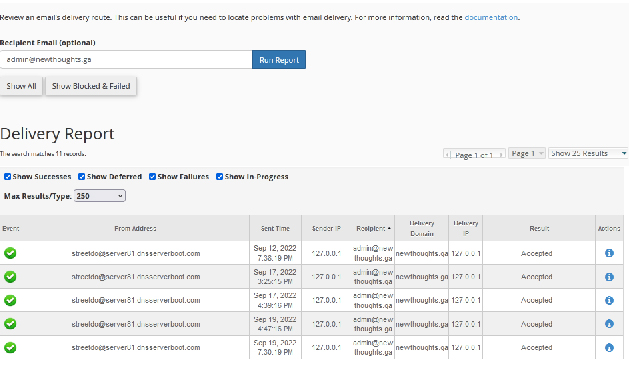
  • If you want to track the email report for a particular user or email then enter the domain email in the Recipient Email box and Run Report.
  • List of all the blocked, delivered and in progress emails will appear of the particular domain.


Now, there are more things that can be checked from here.

  • You can filter out more details of the emails. Click over 3 lines at the right corner and list of options will appear. Check the box which you want to see in the section and uncheck which you don’t.
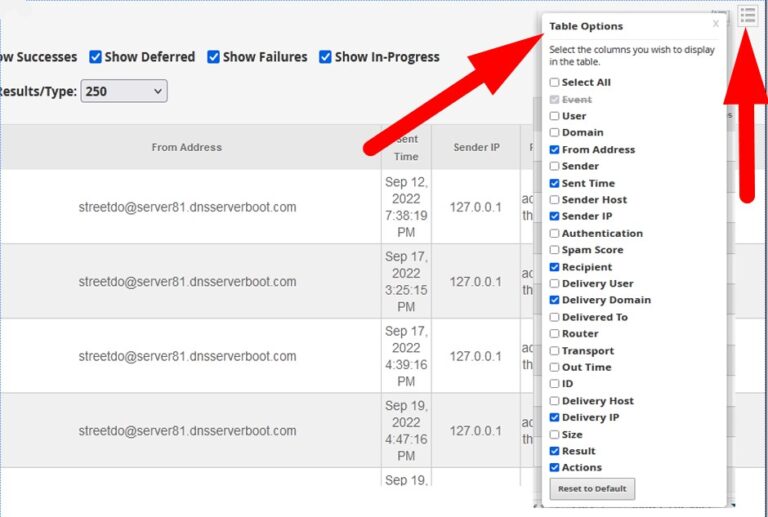
     

You can see the status in detail or the send or received email. Go to actions column and click over  view details icon as directed in the image.
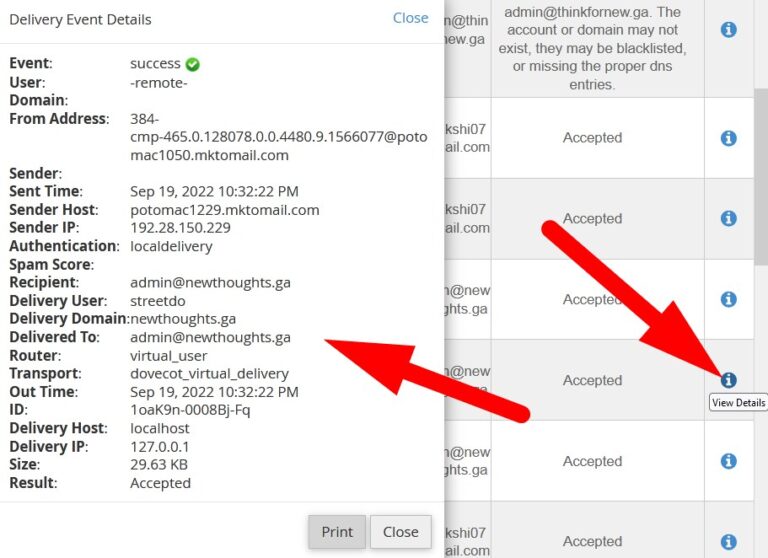
 

  • As you click over blue icon, a page window will open that contains all the details of the selected recipient. Refer to the above given image.


The End! should you have any inquiries, we encourage you to reach out to the Vercaa Support Center without hesitation.

 

Was this answer helpful?

Related Articles

description

How to Transfer Your Main Domain to Another cPanel as an Add-on Domain Safely and Without Data Loss

Here, in this tutorial, we will discuss the procedure to move primary domain to a different cPanel as an add-on domain without losing data.…

arrow_forward
description

How to Modify the Admin Password in AbanteCart

AbanteCart is a free E-Commerce solution that allows user to create and manage E-commerce website. Here, in this tutorial we will discuss…

arrow_forward
description

Modifying the Admin Password in OpenCart

Here, in this tutorial we will discuss the procedure to change OpenCart Admin Password. We have shared articles related to installation of…

arrow_forward
description

How to Monitor cPanel/WHM User Activities from WHM Root?

Login to WHM with root access. Navigate to Plugins section and select ConfigServer Security & Firewall.     On the next…

arrow_forward
description

Modifying WordPress Site's CSS File via cPanel

Login to cPanel associated with your WordPress website. Go inside File Manager section and then get into WordPress installation.…

arrow_forward
arrow_back « Back