Engaging Your Audience: Managing Comments in Drupal

thumb_up 1  ·  sell Comment moderation in Drupal, Managing user feedback in Drupal

In this chapter, we will study about Comments in Drupal. You can enable or disable the comments on your website. You can control, who can comment on your website's content and who can manage those comments.

Following are the simple steps to configure comments in Drupal.

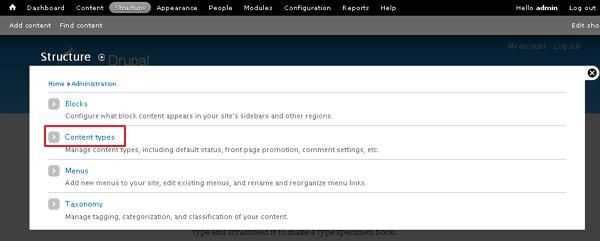
Step 1 − Go to Structure and click Content types as shown in the following screen.
 

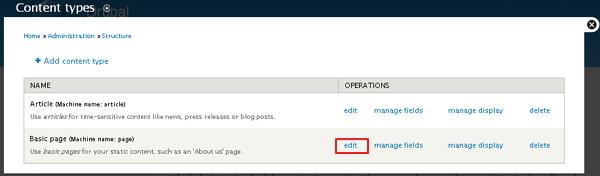
Step 2 − Click on Edit link that you would like to change the comment setting.


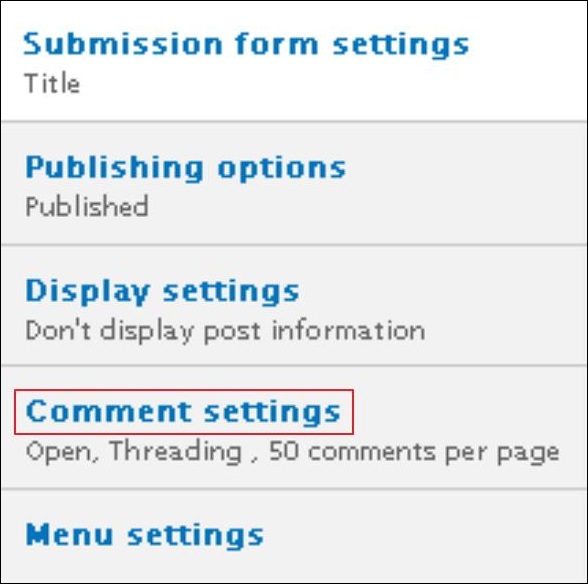
Step 3 − Click Comment settings category as shown in the following screen.


Step 4 − Select open from the drop-down menu under Default comment setting for new content. This will allow comments on your website.
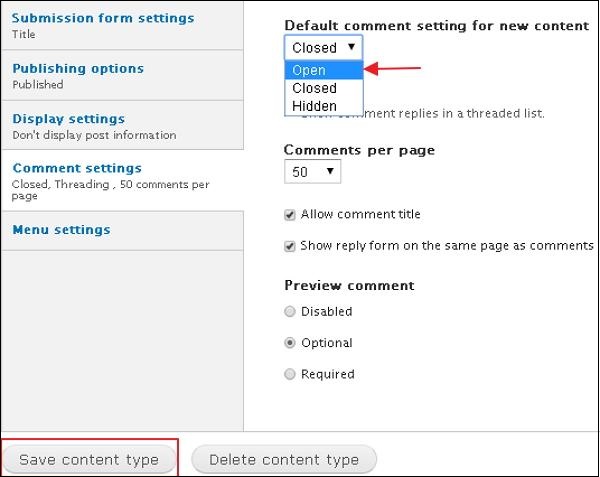
 

Click the Save Content type button to save your configuration settings.


The End! should you have any inquiries, we encourage you to reach out to the Vercaa Support Center without hesitation.

Was this answer helpful?

Related Articles

description

An Introduction to Drupal

    Drupal is a free and open source Content Management System (CMS) that allows organizing, managing and publishing your content. It is…

arrow_forward
description

Installing Drupal: A Comprehensive Guide

    This chapter provides step-by-step procedure for Drupal installation. Before installing Drupal, the following system requirements are…

arrow_forward
description

Understanding the Drupal Architecture

  Drupal is a platform for web content management which is a powerful tool for building simple and complex sites. In this chapter, we are…

arrow_forward
description

Exploring Drupal's Main Menu Functionality

    In this chapter, we will study how to Create Menus in Drupal. Menus are very important to easily navigate in your website. Menus…

arrow_forward
description

Mastering Drupal's Blocks and Regions

  In this chapter, we will study about Drupal Blocks & Regions. Blocks are container objects that are used to organize your content of…

arrow_forward
arrow_back « Back