Managing Your cPanel Password: A Quick Tutorial

thumb_up 1  ·  sell cPanel password modification, Changing cPanel account password, Update cPanel login credentials

When you are successfully logged into a cPanel Dashboard, first and foremost, change the password of your cPanel account.

This is very important, so that the security of cPanel remains intact. Nobody would want their website to be hacked.

To change your cPanel Password, follow these steps −

Step 1 − In cPanel Home, click username written over the right corner of the dashboard
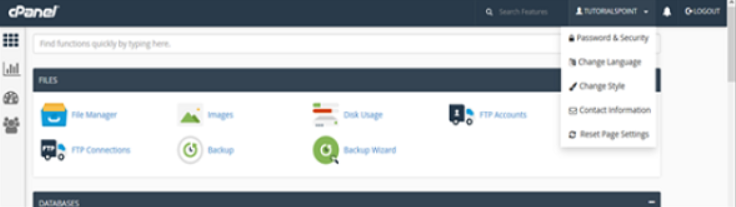
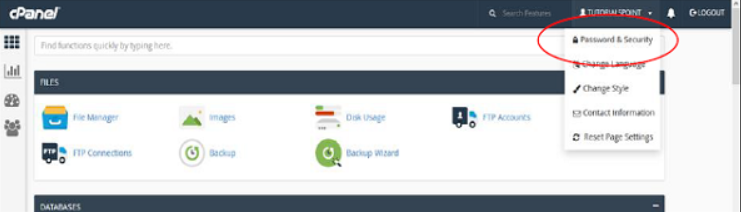
Step 2 − Click Password & Security option. You will find Change Password Interface.
 

Step 3 − Write your old password and in the following fields, write your new password twice.
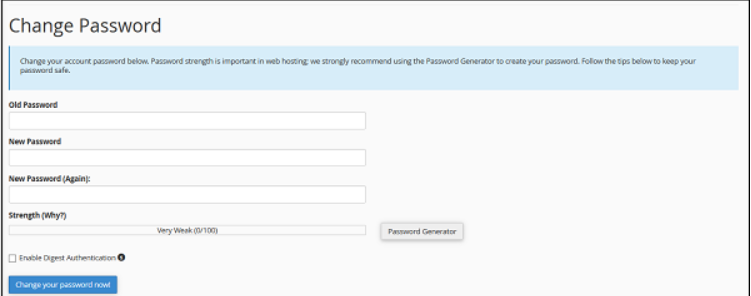
 

Step 4 − Enable digest authentication option if you need to access your webdisk via an unencrypted connection in windows machine. This type of connection is unsecured and not recommended.

Step 5 − Click Change your password now! Button to change your current password. If successful, then cPanel will automatically log you out and you will have to login again with your new password.


The End! should you have any inquiries, we encourage you to reach out to the Vercaa Support Center without hesitation.

Was this answer helpful?

Related Articles

description

How to Transfer Your Main Domain to Another cPanel as an Add-on Domain Safely and Without Data Loss

Here, in this tutorial, we will discuss the procedure to move primary domain to a different cPanel as an add-on domain without losing data.…

arrow_forward
description

How to Modify the Admin Password in AbanteCart

AbanteCart is a free E-Commerce solution that allows user to create and manage E-commerce website. Here, in this tutorial we will discuss…

arrow_forward
description

Modifying the Admin Password in OpenCart

Here, in this tutorial we will discuss the procedure to change OpenCart Admin Password. We have shared articles related to installation of…

arrow_forward
description

How to Monitor cPanel/WHM User Activities from WHM Root?

Login to WHM with root access. Navigate to Plugins section and select ConfigServer Security & Firewall.     On the next…

arrow_forward
description

Modifying WordPress Site's CSS File via cPanel

Login to cPanel associated with your WordPress website. Go inside File Manager section and then get into WordPress installation.…

arrow_forward
arrow_back « Back