In this chapter, we will learn about Form module in Drupal. This module lets you create a form in Drupal based on the website for your users.
Following are the steps to install Form Module in Drupal.
Step 1 − Download the latest file of Form Builder module from the link and install in your Drupal site.
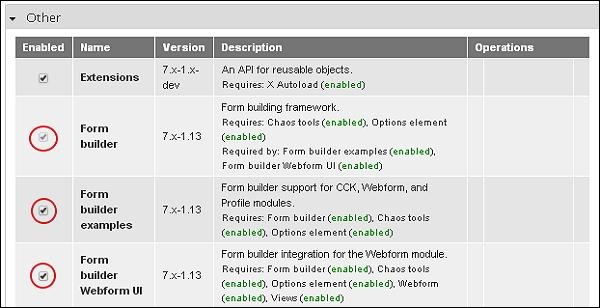
Step 2 − Enable Form Builder module from the module page.
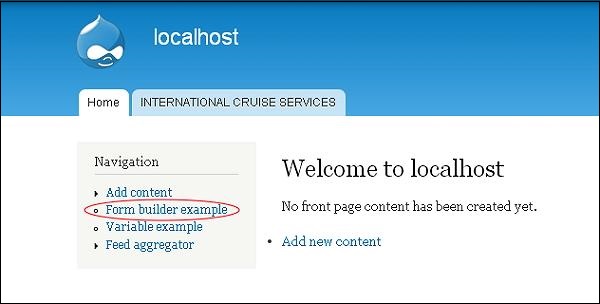
Step 3 − Click Form Builder example from the dashboard.
Step 4 − A Form builder example page gets displayed as shown in the following screen.
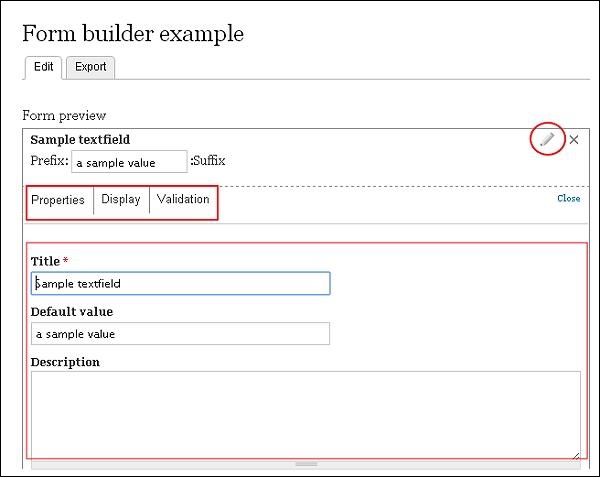
Here you can add, edit or remove the details manually.
Sample Text Field (Properties)
-
Title − Enter the title name for your form.
-
Default value − Sets the default value.
-
Description − Enter description related to the title in that box.
Sample Text Field (Display)
-
Prefix − Enter the prefix text.
-
Suffix − Here you must put the suffix text.
-
Size − Input size accordingly.
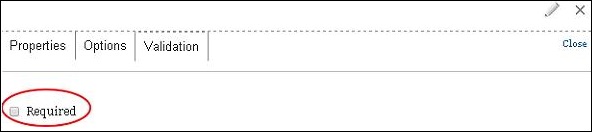
Sample Text Field (Validation)
-
Required − Check the box, when you want to validate the text field.
Sample Checkboxes (Properties)
-
Title − Enter your title name for your form.
-
Description − Enter description related to the title in that box.
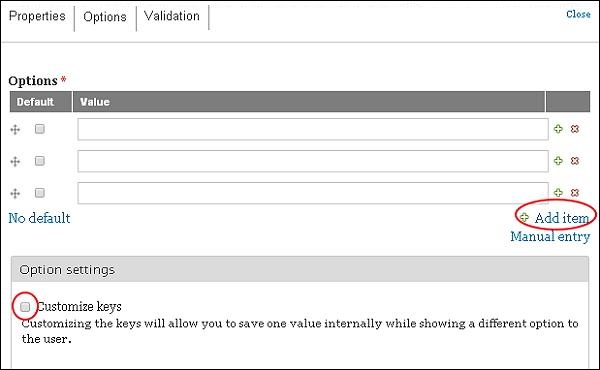
Sample Checkboxes (Options)
-
Options − Add items, mark as default and input the values.
-
Customize Keys − Enable this setting if you want to save any one value.
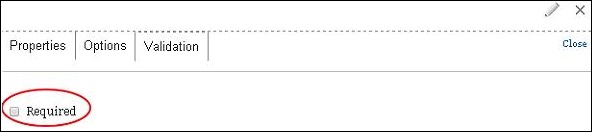
Sample Checkboxes (Validation)
-
Required − Check the box when you want to validate the field.
Sample Text Area (Properties)
-
Title − Enter the title name for your form.
-
Default value − Set the default value.
-
Description − Enter description related to the title in that box.
Sample Text Area (Display)
-
Rows − Enter rows.
-
Columns − Enter columns.
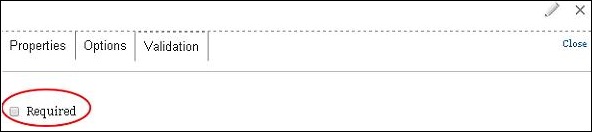
Sample Text Area (Validation)
-
Required − Check the box when you want to validate the field.
Sample Radios (Properties)
-
Title − Enter the title name for your form.
-
Description − Enter description related to the title in that box.
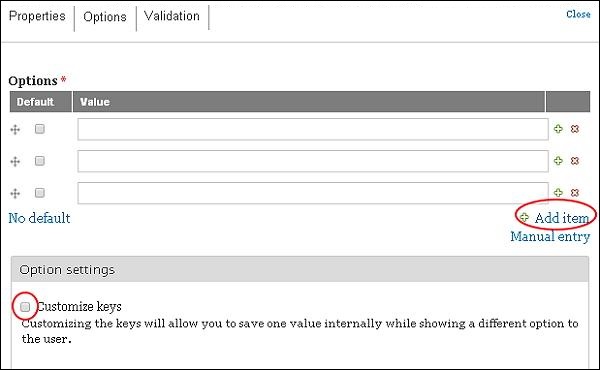
Sample Radios (Options)
-
Options − Add items, mark as default and input the values.
-
Customize Keys − Enable this setting if you want to save any one value.
Sample Radios (Validation)
-
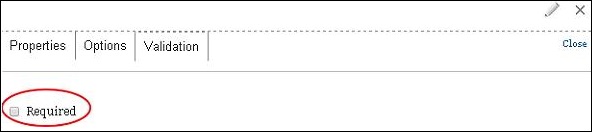
Required − Check the box when you want to validate the field.
Sample Select (Properties)
-
Title − Enter the title name for your form.
-
Description − Enter description related to the title in that box.
Sample Select (Options)
-
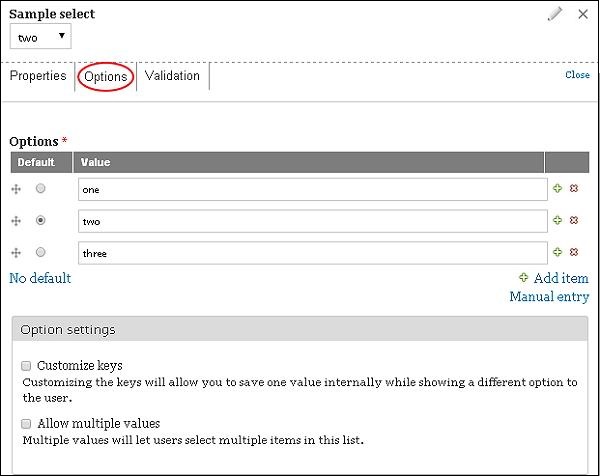
Customize Keys − Enable this setting if you want to save any one value.
-
Allow Multiple values − This will help users choose multiple items in your lists.
The End! should you have any inquiries, we encourage you to reach out to the Vercaa Support Center without hesitation.
