In this chapter, let us study about setting up Shipping options in Drupal. In general, Shipping refers to transport of goods from one location to another. In order to set up Shipping you have to install Commerce Flat Rate and Commerce Shipping modules. In this chapter, let us create Free Shipping for orders greater than $100 and Paid Shipping for orders less than $100.
Following are the simple steps to set up Shipping.
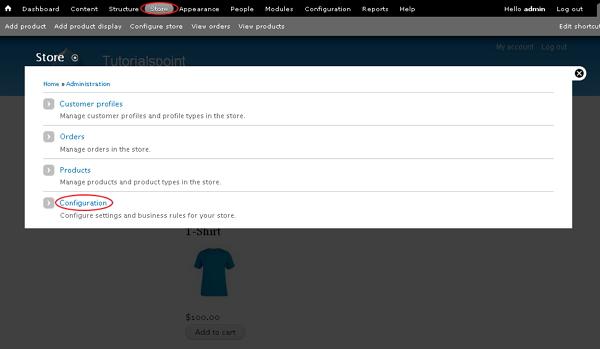
Step 1 − Go to Store and click Configuration as shown in the following screen.
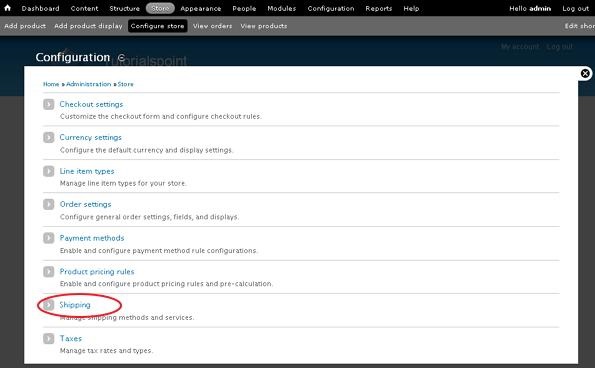
Step 2 − Click on Shipping.
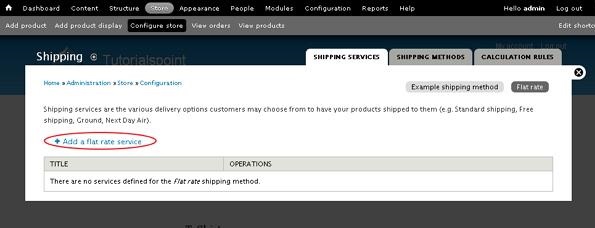
Step 3 − Click Add a flat rate service as shown in the following screen.
Step 4 − The Shipping page will get displayed as shown in the following screen.
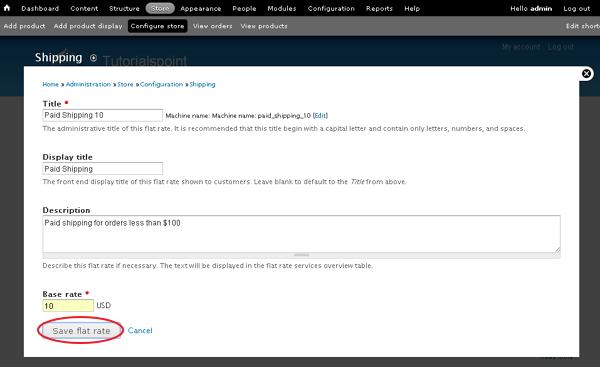
It contains the following fields −
-
Title − Provide a title which will be the administrative title of this flat rate.
-
Display title − Enter title that will be displayed on front-end of the flat rate shown to customers.
-
Description − Enter brief description about the flat rate.
-
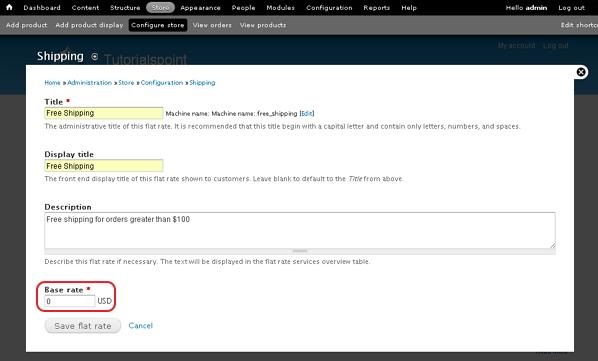
Base rate − Provide a value for the flat rate.
Later, click the Save button.
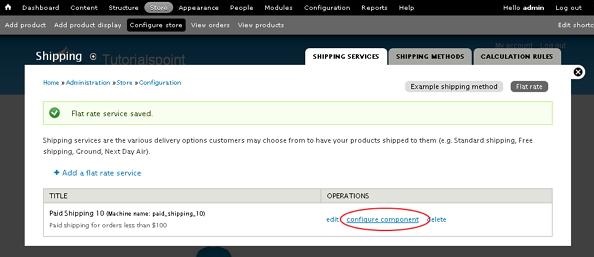
Step 5 − Next, you have to configure the component by clicking configure component as shown in the following screen.
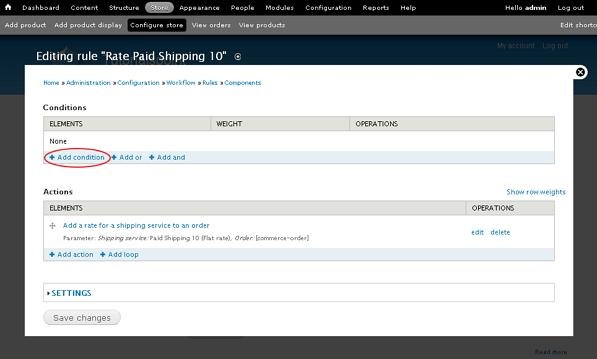
Step 6 − Click Add condition.
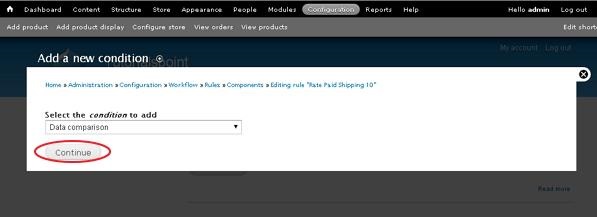
Step 7 − Choose Data comparison from dropdown and click Continue.
Step 8 − For Data selector field, choose commerce-order...(Order) from the dropdown as shown in the following screen.
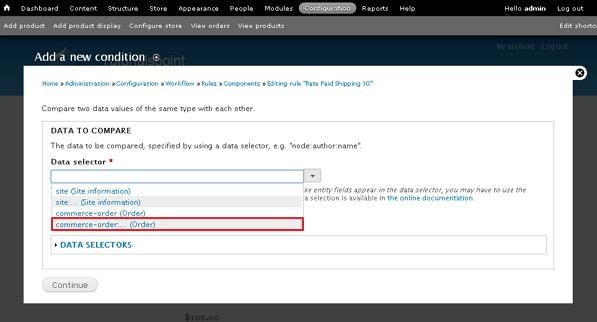
Step 9 − Then, choose commerce-order:commerce-order-total:... (Order total) from the dropdown as shown in the following screen.
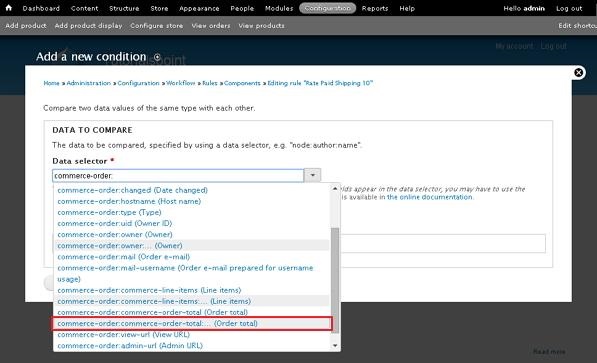
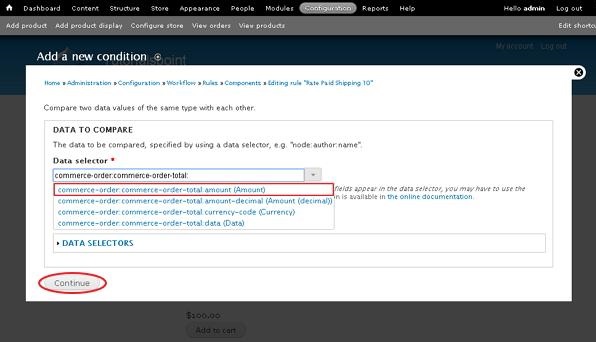
Step 10 − Choose commerce-order:commerce-order-total:amount (Amount) from the dropdown and click Continue as shown in the following screen.
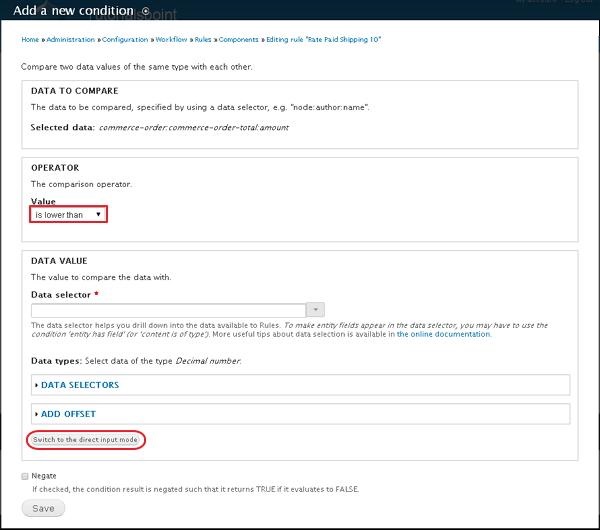
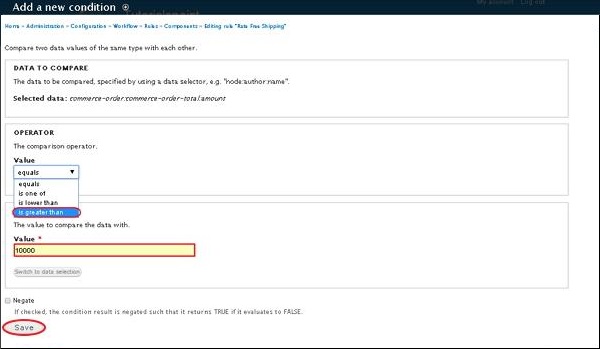
Step 11 − Next, under OPERATOR section, you have to select is lower than value from the dropdown and click Switch to the direct input mode as shown below.
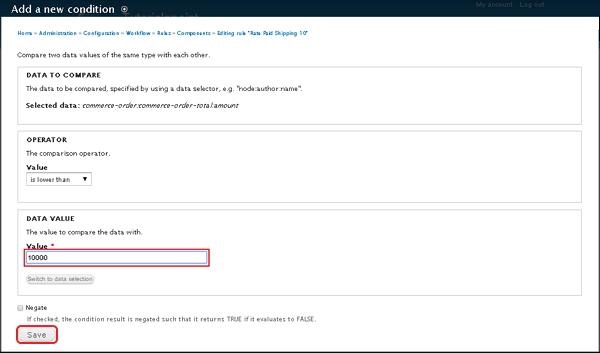
Step 12 − Under DATA VALUE section, provide the value (usually the value given here is in cents (i.e. $100 = 10000 cents)). Later, click the Save button.
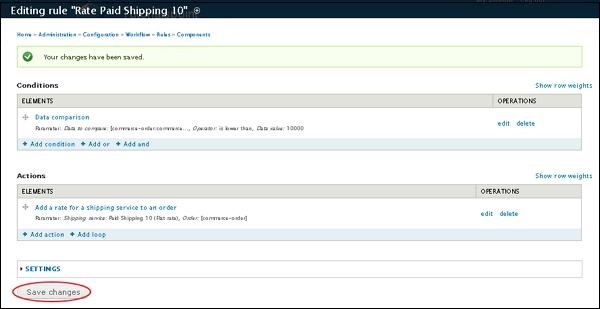
Step 13 − Click Save changes as shown in the following screen.
Step 14 − For Free Shipping you have to create another Flat rate service (as we did in Step(3 and 4)) and provide zero(0) for Base rate as shown in the following screen.
Step 15 − Configure the component for Free Shipping (follow the same steps from 5 to 10 for free shipping as well), choose ‘is greater than’ and provide 10000 (i.e. 10000 cents) value as shown in the following screen and click the Save button.
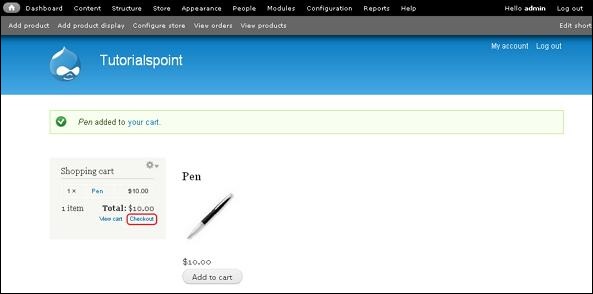
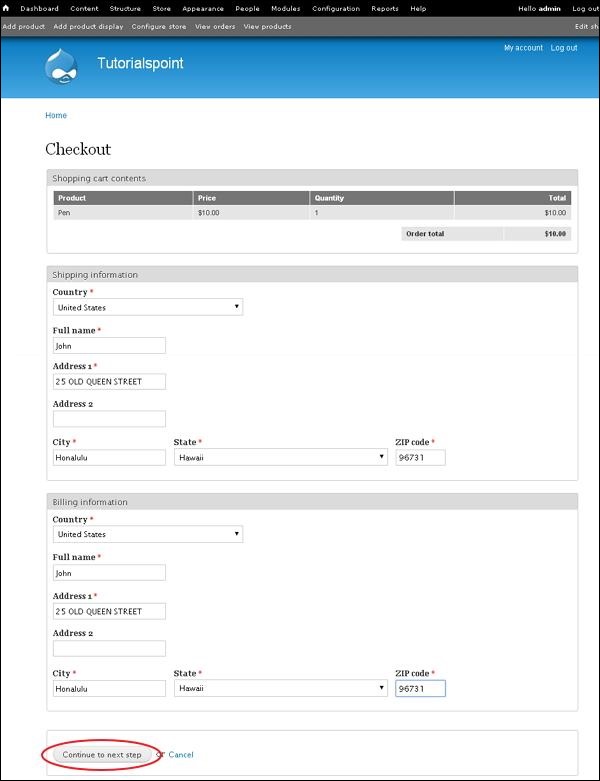
Step 16 − Add a product to the cart which is less than $100 and click the Check out tab.
Step 17 − Next, fill up Shipping information, Billing information and click Continue to next step as shown in the following screen.
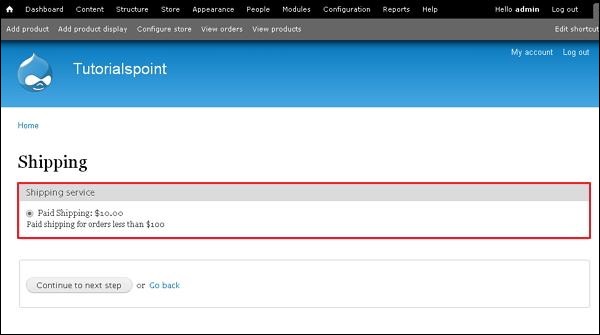
Step 18 − Now you can see the Paid Shipping option displayed as shown in the following screen.
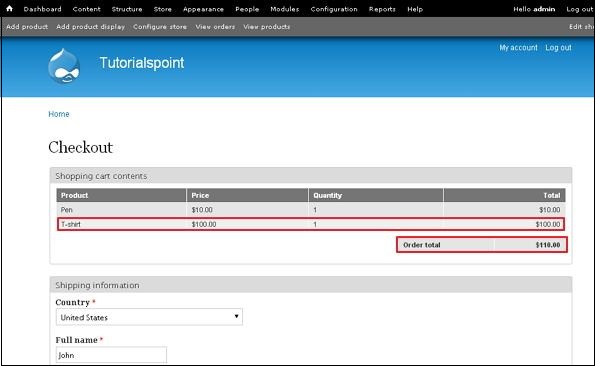
Step 19 − You can add some more products, so that Order total exceeds $100.
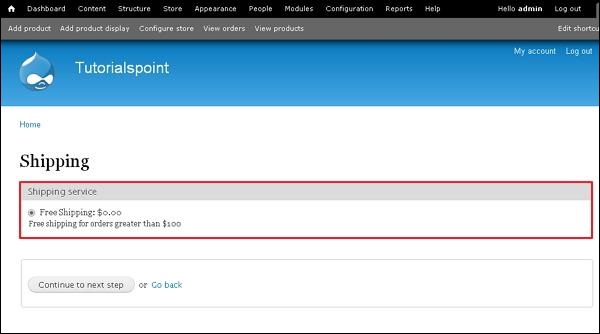
Step 20 − Finally, you can see that Free Shipping option is displayed after it exceeds the $100.
The End! should you have any inquiries, we encourage you to reach out to the Vercaa Support Center without hesitation.
