In this chapter, we will learn how to send E-mail Notifications to the owner or creator, when a new comment is posted to the article. E-mail Notification is an alert that a new mail has arrived in your mail box.
Following are the simple steps to set up e-mail notification in Drupal.
Step 1 − Click Configuration menu on Drupal.

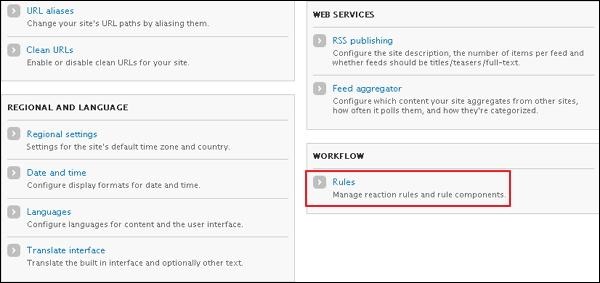
Step 2 − Next, click Rules link in the WORKFLOW section as shown in the following screen.
Step 3 − Click Add new rule link.
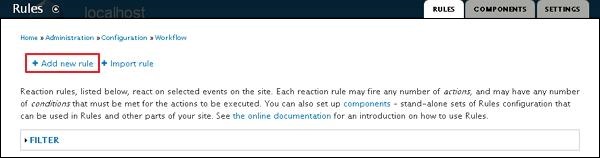
Step 4 − Next, the Rules page will get displayed as shown in the following screen.
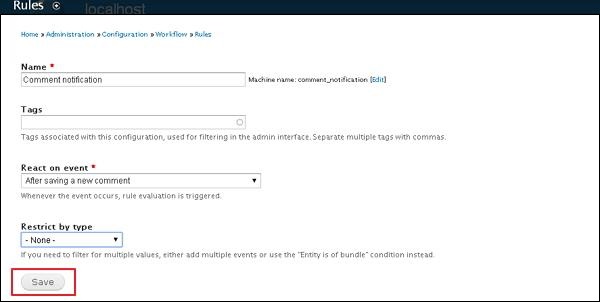
It contains the following fields −
-
Name − Enter the name.
-
Tags − Enter the tags
-
React on Event − Select the event where the notification should arrive.
-
Restrict by Type − Select the type where you need to filter the values or events.
After filling all the fields, click the Save button to save the rule.
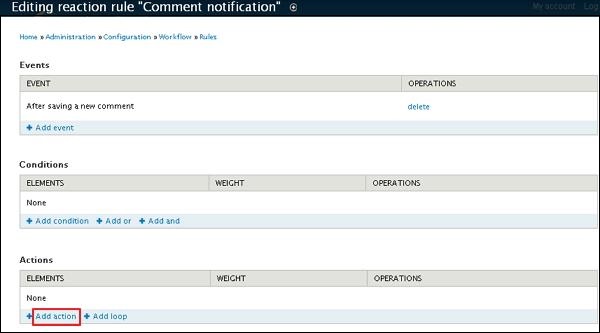
Step 5 − Now, Editing reaction rule "Comment Notification" page gets displayed. Click Add action link in Actions section as shown in the following screen.
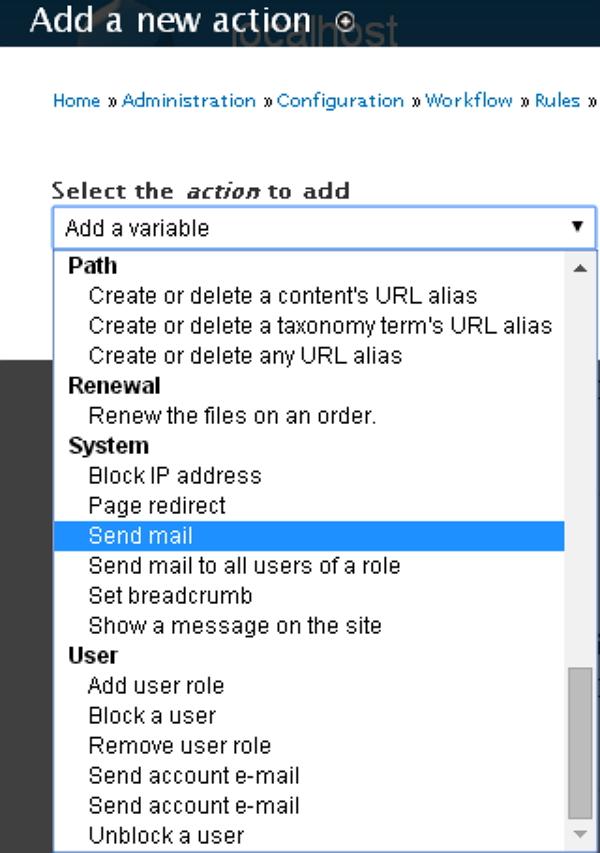
Step 6 − Add a new action page gets displayed. Select Send mail option in System section from the dropdown menu.
Step 7 − Next, a page will get displayed as shown in the following screen.
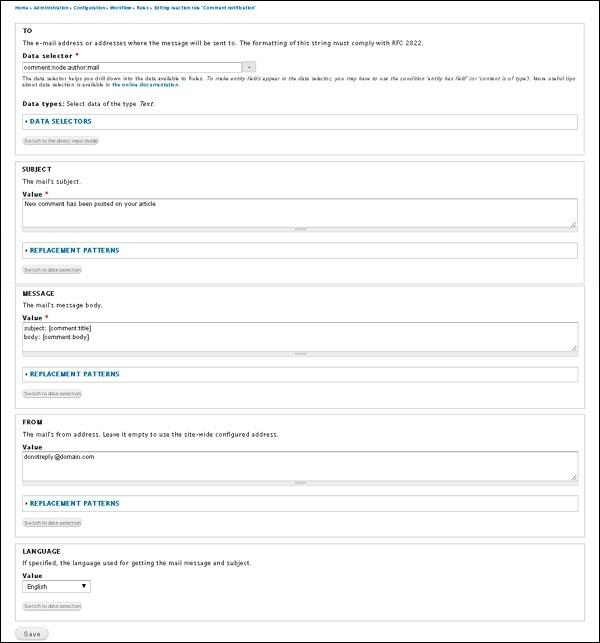
Following are the details about the fields present in the preceding screen.
-
Data selector − Select comment→node→author→mail from the dropdown menu.
-
Subject − Enter the mail subject in the Value text box.
-
REPLACEMENT PATTERNS − This data selection input mode may help you find more complex replacement patterns. You can select the TOKEN type and replace it as per demand.
-
MESSAGE − Enter mail's message body content in the message Value text box.
-
FROM − It displays the mail address from which mails will be sent to the receiver.
-
LANGUAGE − It specifies the language used for getting the mail message and subject. You can choose the language from the dropdown menu.
Click the Save button to save the notification.
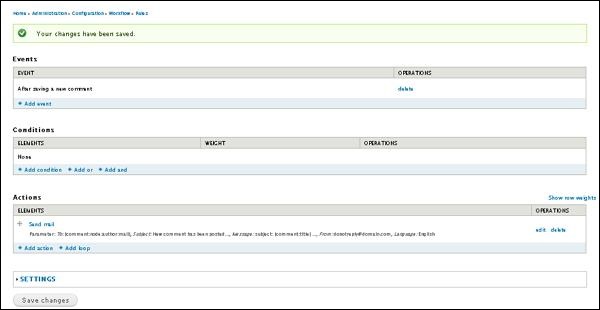
Step 8 − You will see the following screen, after you save your notification.
The End! should you have any inquiries, we encourage you to reach out to the Vercaa Support Center without hesitation.
