In this chapter, we will study about menus present under the Joomla content. A drop-down menu is displayed when you click on Content Menu.
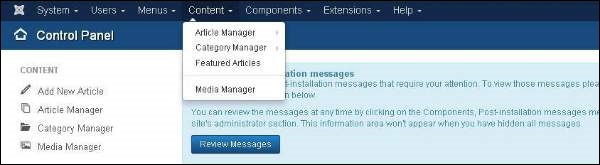
Article Manager
In Article Manager, you can create the standard pages that consist of images, text and hyperlinks. Click on Content → Article Manager menu on Joomla administrative panel, you will get the following screen −
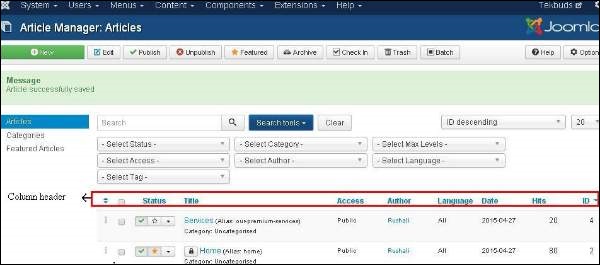
Here, we have mentioned the details about the column header present on the Article Manager page.
-
Checkbox − It is used to select one or more items.
-
Status − specifies the status of the page or article, i.e., Publish/Unpublish/Archieve/trashed.
-
Title − Specifies the name of the title that will be displayed in the menu.
-
Access − Specifies the access level, i.e. public or private.
-
Author − This is the author name who has created that particular item.
-
Language − Specifies the item language used.
-
Date − Specifies the article creation date.
-
Hits − Specifies the number of times the item was viewed.
-
ID − It is the unique identification number assigned to the items automatically.
Let us learn about the Search box in the article manager page which is used to search the items very easily.

Here you can search the item in the article manager page by selecting any of these − Select Status, Select category, Select Max Levels, Select Access, Select Author, Select language or Select Tag.
We will study about Article Manager Toolbar in detail in the chapter Joomla Toolbar.
Add New Article
Click on Content → Article Manager → Add New Article menu on the Joomla administrative panel, then you will get the following screen. The same page can be viewed when you click on Category Manager → Add New Category
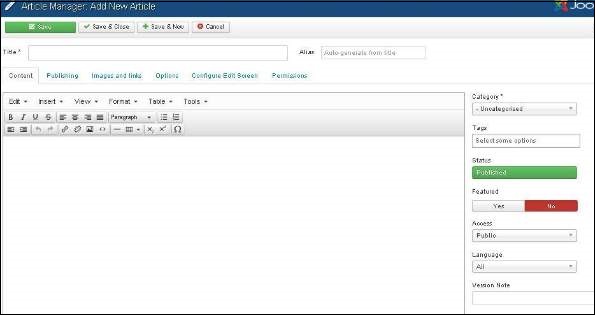
Here you can create your article or web page by specifying the title in Title bar and we can add or write content in the content tab. We will study about this in detail in the chapter Joomla Adding Content.
Category Manager
Category Manager is used to create categories for the articles which allows grouping your content better. Click on Content → Category Manager menu on the Joomla administrative panel, then you will get the following screen image −
We will study about Category Manager Toolbar in detail in the chapter Joomla Toolbar.
Here, we have mentioned the details about the column header present on the Category Manager page.
-
Checkbox − It is used to select one or more category items by clicking on the box.
-
Status − Specifies the status of the category i.e. Publish/Unpublish.
-
Title − Specifies the name of the title in the category.
-
Access − Specifies the access level, i.e. Public or Private.
-
Language − Specifies the item language used.
-
ID − It is the unique identification number assigned to the items automatically.
Featured Article
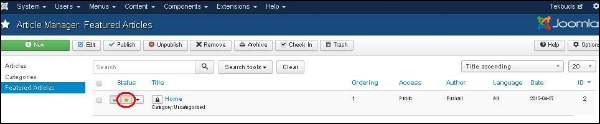
Click on Content → Featured Manager menu on the Joomla administrative panel, then you will get the following screen −
Here the yellow star mark indicates the article is featured. The star mark is present next to each article for featured articles.
Here, we have mentioned the details about the column header present in theFeatured Article page.
-
Checkbox − It is used to select one or more items by clicking on the box.
-
Status − Specifies the status of the page or article, i.e. Publish/Unpublish.
-
Title − Specifies the name of the title that displays in the menu.
-
Ordering − Specifies the order of item creation.
-
Access − Specifies the access level, i.e. public or private.
-
Author − Describes the author name who has created that particular item.
-
Language − Specifies the item language used.
-
Date − Specifies the date of the article it was created on.
-
ID − It is the unique identification number assigned to the items automatically.
Media Manager
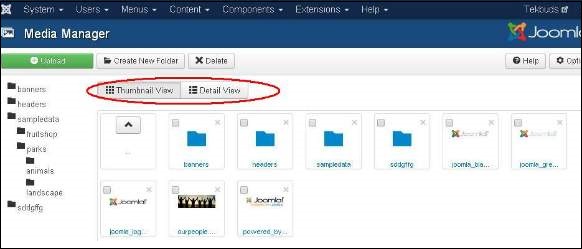
You can manage your media files by uploading a new file or deleting the existing ones using media manager. Click on Content→Media Manager menu on the Joomla administrative panel, then you will get the following screen −
We will study about Media Manager Toolbar in detail in the chapter Joomla Toolbar.
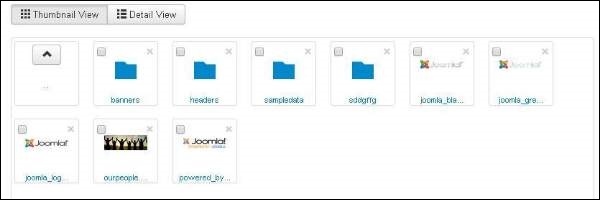
Thumbnail View
Thumbnail view contains previews of images and icons of sub-folder. When we click on Thumbnail View then the media manager will look like as shown below.
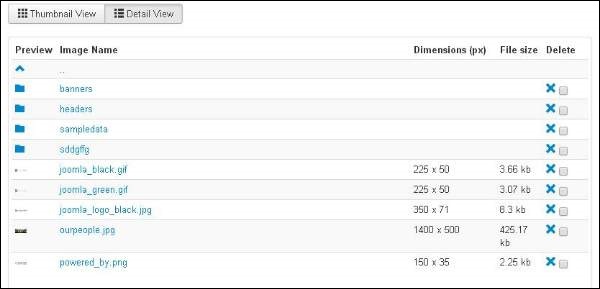
Detail View
Detail view contains the file details. In the detail view, the file information such as dimension and file size are displayed. When we click on the Detail View then the media manager will look like as shown below.
The End! should you have any inquiries, we encourage you to reach out to the Vercaa Support Center without hesitation.
