The Global Configuration is used for configuring Joomla site with your personal settings. To access the system settings, just follow the following steps −
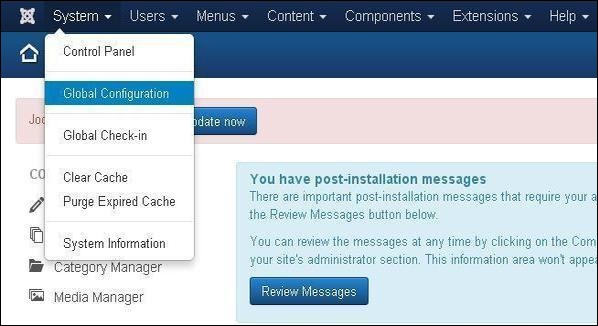
Step 1 − Go to System → Global Configuration as shown in the following screen.
Step 2 − Under Global Configuration section, click on the System tab to get System Settings as shown in the following screen.
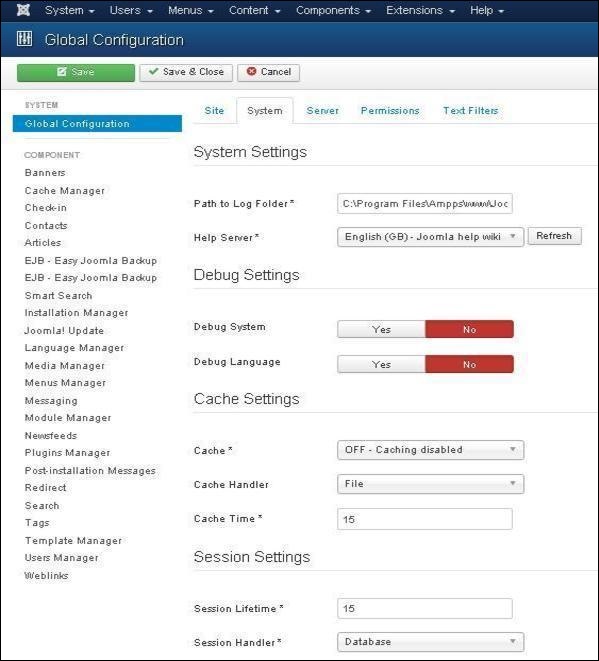
Under System Settings, you can see there are two options −
-
Path to Log Folder − It gives a path to store the logs by Joomla. This path is automatically set up on Joomla installation and should not be changed.
-
Help Server − It provides help information when the button is clicked. It uses appropriate language for the help service. It uses Joomla main help site by default.
Debug Settings
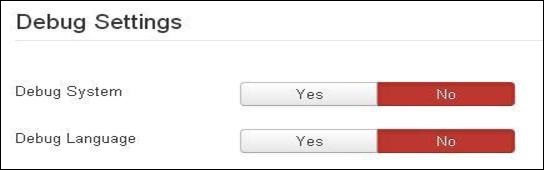
The Debug Settings contain two options −
-
Debug System − It is a debugging system of Joomla which provides debug information by setting it to "Yes". It provides various forms such as diagnostic information, language translations and SQL errors. The default setting is "No".
-
Debug Language − It provides debug language translations for Joomla site by setting it to "Yes".
Cache Settings
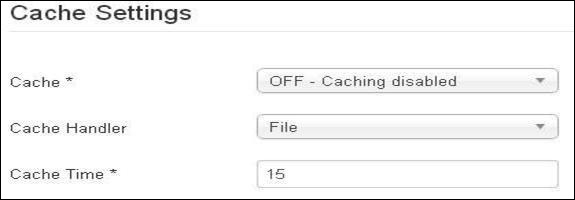
The Cache Settings contain three options −
-
Cache − It specifies whether the cache is enabled or not. It reduces the load used by the websites to a web server. The default is "OFF - Caching disabled".
-
Cache Handler − It provides file-based caching mechanism for cache handling.
-
Cache Time − It specifies the maximum time for a cache file before it is refreshed. The default cache time is 15 minutes.
Session Settings
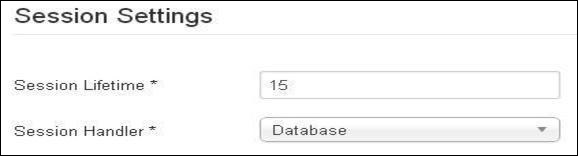
The Session Settings contain two options −
-
Session Lifetime − It defines the session time for users who remain signed in. The default session is 15 minutes.
-
Session Handler − It provides session handler which informs how the session should be handled after a user logs into the site. The default setting is "Database".
Toolbar
Following are the details about the toolbar function tabs −
-
Save − Saves your setting.
-
Save & Close − Saves the settings and closes the current screen.
-
Cancel − Cancels the setting in Joomla
The End! should you have any inquiries, we encourage you to reach out to the Vercaa Support Center without hesitation.
