With this feature of cPanel, you can manage and modify your Images directly through its Interface.
The image must be uploaded into your account to use this feature. To access cPanel Images, click Images Link found on your files section.
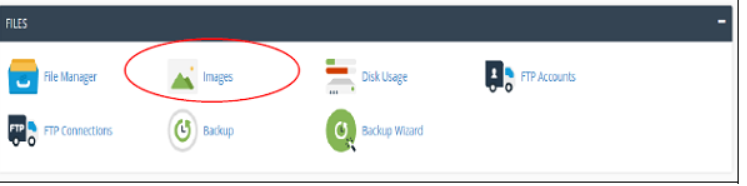
This feature includes the following tools −
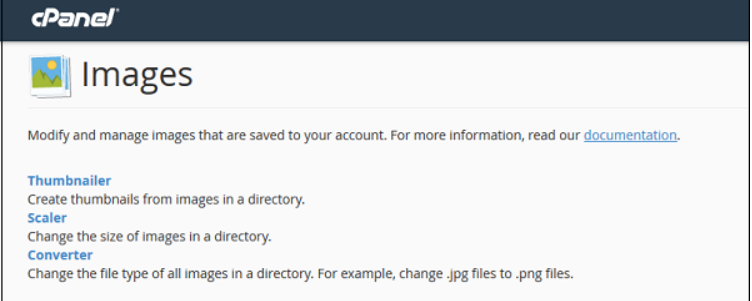
Thumbnailer Converter
Thumbnailer creates small images or Thumbnails of the original image. This is done by using these images wherever required as it could save more bandwidth. For example, when we need to display a preview of the photo, which will then be opened into a new tab, when the user clicks preview image. We can use a small image here, rather than forcefully scaling the image to display in a small size.
To use Thumbnailer converter, we can open the application by clicking on the Thumbnailer link from images section. We will get a similar dashboard as shown below.
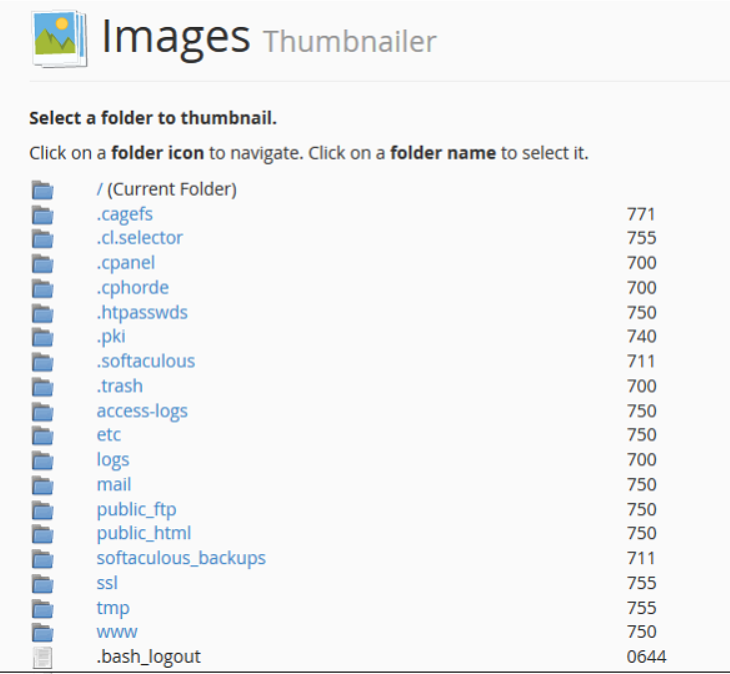
Step 1 − Navigate to the desired directory from which you wish to create Thumbnails, to navigate within directories use folder icon on left hand side.
Step 2 − Select folder from which you wish to create thumbnails, by clicking on the name of folder displayed in middle.
Note − Thumbnailer is a bulk thumbnails creator tool, single image cannot be used in these tools.
Step 3 − In Scale Percent, text inputs enter the percentage by which you wish to shrink the image. Select Keep aspect ratio to maintain original proportion of the Image.
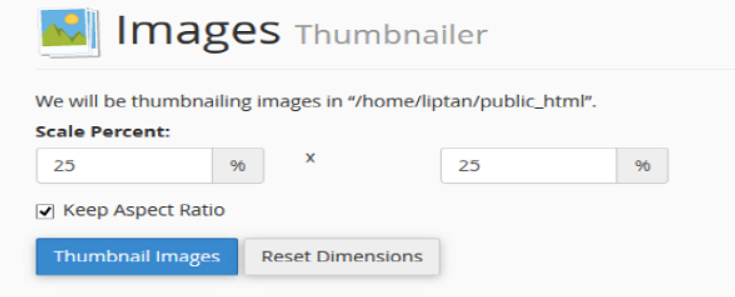
Step 4 − Finally click on Thumbnail Images to create thumbnails.
The system will automatically create a subfolder, Thumbnails into selected folder and all files in that folder will be converted and saved there with a prefix tn_. For example, if you have an image abc.png, then it will be saved into tn_abc.png.
The End! should you have any inquiries, we encourage you to reach out to the Vercaa Support Center without hesitation.
