cPanel Disk Usage is a very efficient way to monitor your accounts available and use disk spaces. This feature scans your disk to provide you a graphical overview of the Disk usage. It displays disk space used by directories, but it does not show how much space is consumed by an individual file. It also displays information of disk quota used by MySQL Databases, hidden directories and Emails.
It helps in management of disk quota, because once you know which directory has the largest files, you can navigate to that directory using file manager and delete unnecessary files.
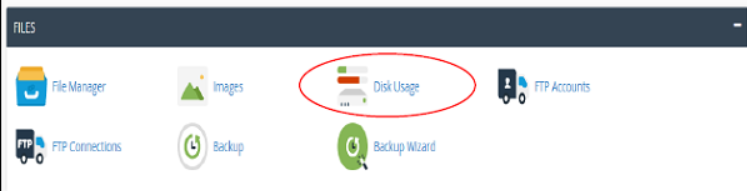
To access this feature, click Disk Usage link from Files section of cPanel.
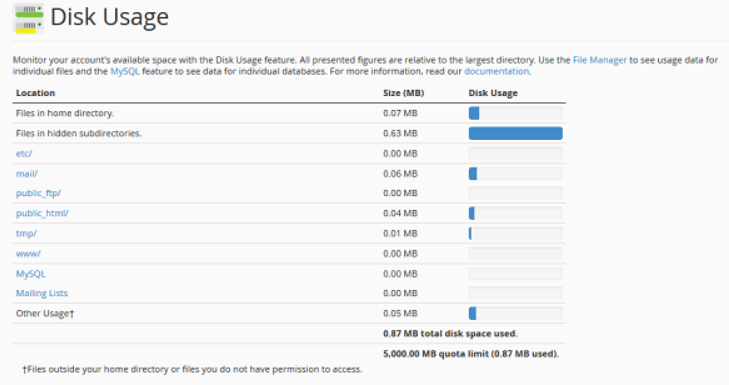
cPanel Disk Manger has mainly two tables. The first table gives you information about disk space used by subdirectories of home directory and space used by other features like MySQL, Mailing Lists. Please refer to screenshot below.
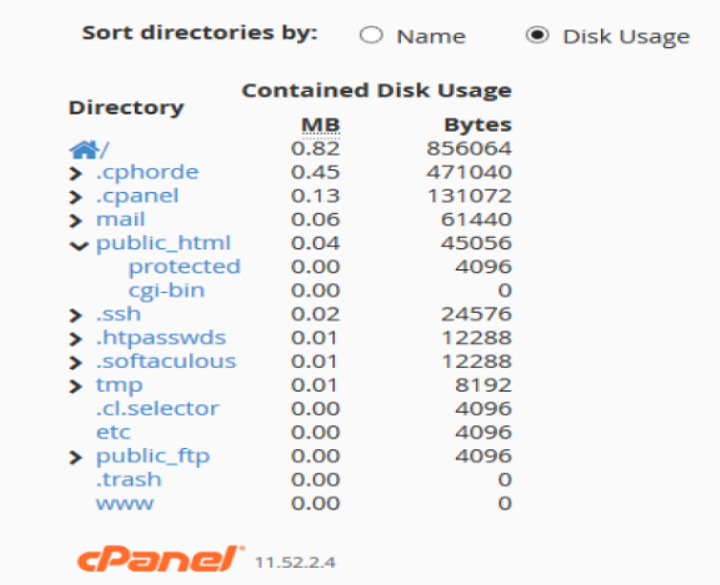
The Second Table displays a directory structure, which has all the subdirectories including hidden ones, to open a directory to view space used by that sub-directory, you can click on the arrow shown in front of the name of the directory. Clicking on the name of directory will take you to the File Manager. In this table, you can see which subdirectory has the largest files in them, it is very helpful when there are lots of directories in your account.
The End! should you have any inquiries, we encourage you to reach out to the Vercaa Support Center without hesitation.
