Are you new in the field of WordPress & Web Hosting? Don’t worry, we’re here to walk you through the 3 easiest methods to check your current WordPress version. WordPress is one of the most used CMS of all time. The popularity of WordPress is increasing rapidly, so the users.
Sometimes, we struggle for small things, and finding the current version of WordPress is one of them. However, we’ll introduce you to the 3 Easy Methods to Check your Current WordPress Version. So, without wasting a time, Let’s dive right in!!
1. Check from Admin Area :
The current version of WordPress can be easily viewed from the WordPress Admin/Dashboard area itself. Let me show you practically.
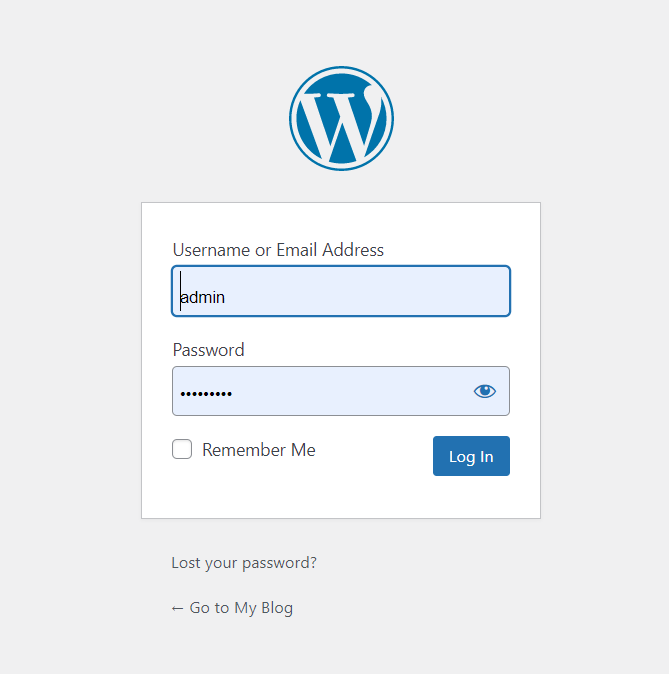
- Log in to your WordPress admin section.
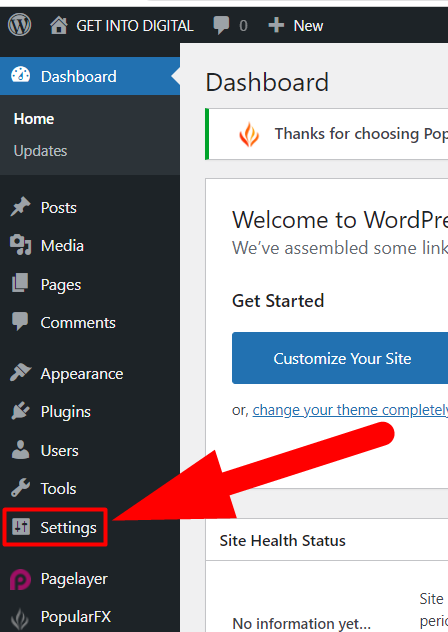
Move inside the Settings tab.
Scroll down to the bottom & you’ll be able to see the current WordPress version in the bottom-right corner.
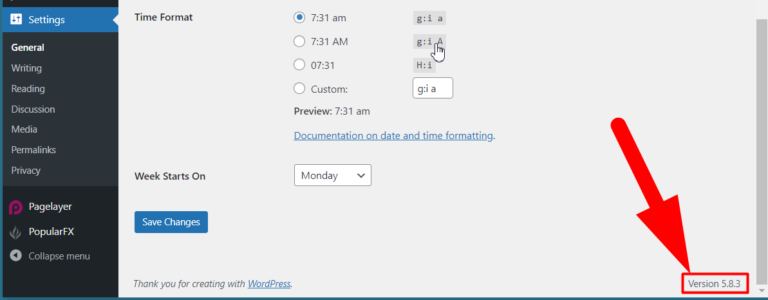
That’s how you can easily view your current WordPress version. Additionally, The current version of WordPress can be displayed at the top of this window also. Now let’s jump to the second method.
2. Check from Page Source :
Yes, you can directly view the current WordPress version of any website from the Page Source. It doesn’t matter the website belongs to you or not, checking the current WordPress version of other websites could also be done by this method.
- Open the website URL & press Ctrl+U from your keyboard or right-click over the website and click over the View Page Source tab.
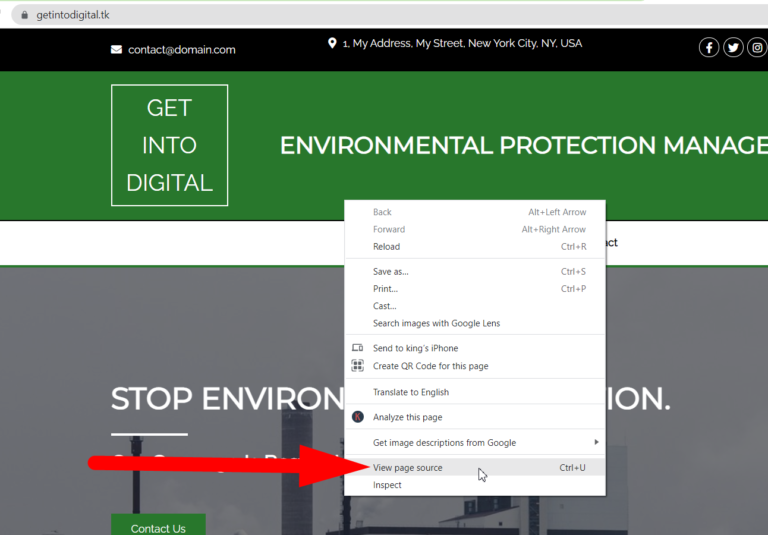
In the page source window, hit the Ctrl+F button and type the generator keyword in it.
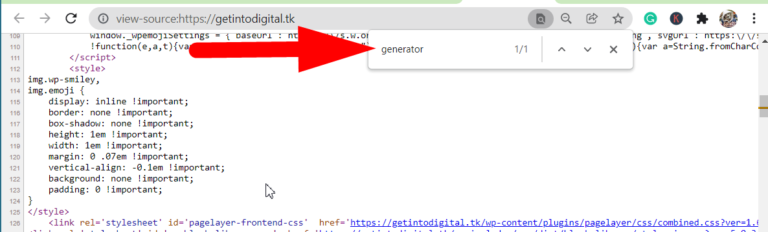
There you can see the current version of WordPress easily.
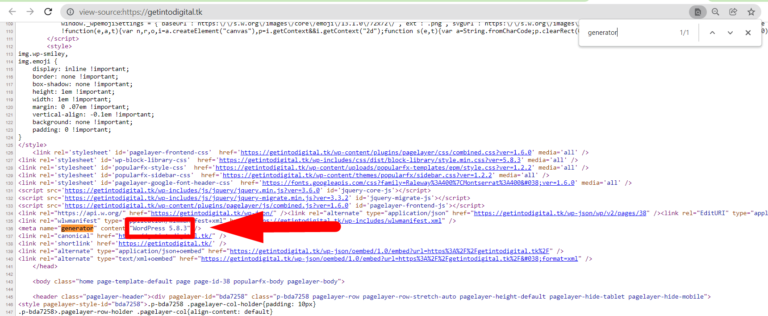
This will work for any WordPress website. Now let’s move towards the third method to check the current WordPress version.
3. Check from cPanel :
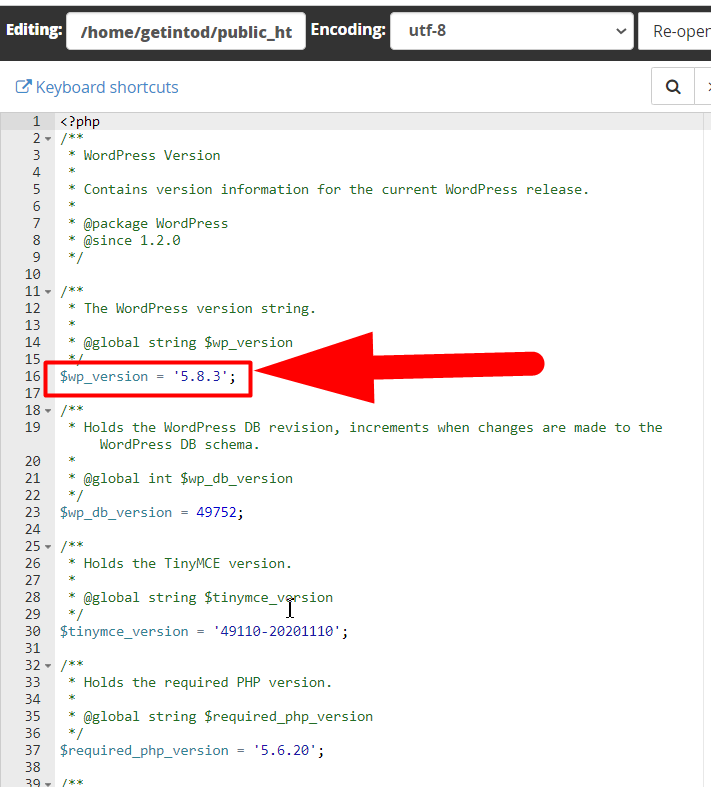
the Current WordPress version can be checked from the version.php file inside cPanel. Let’s do it practically.
- Log in to your cPanel account.
- Move inside your WordPress installation directory and then go inside the wp-includes directory.
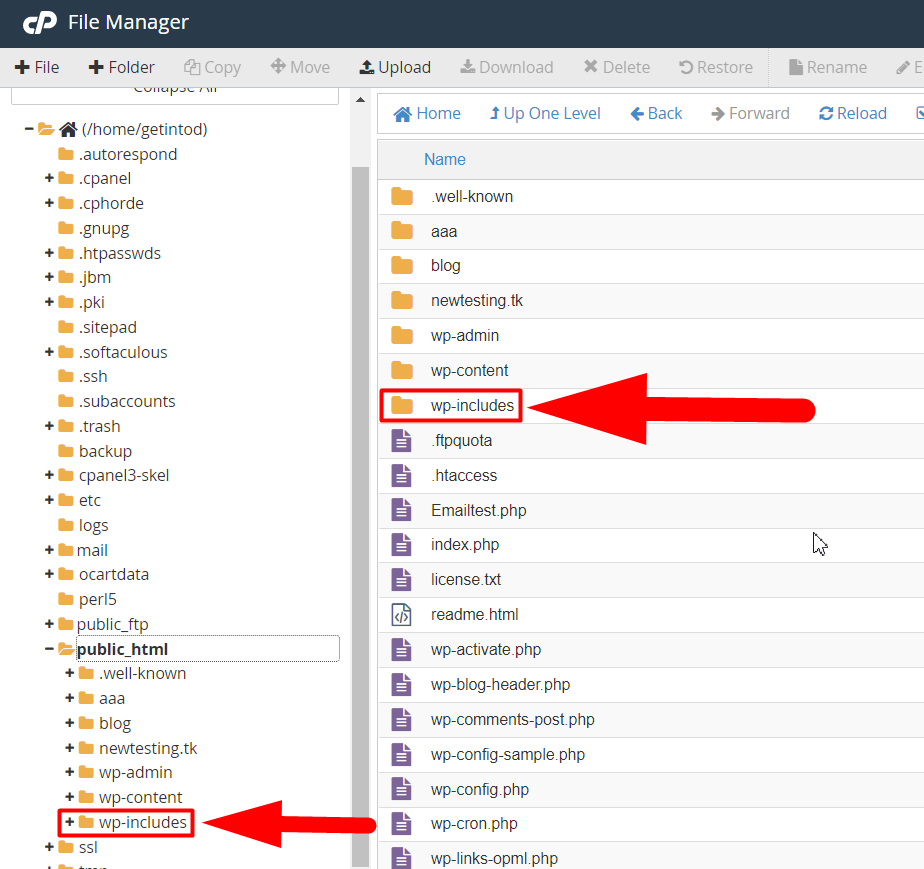
Scroll down to the bottom, find the version.php file and open it by clicking over the Edit button.
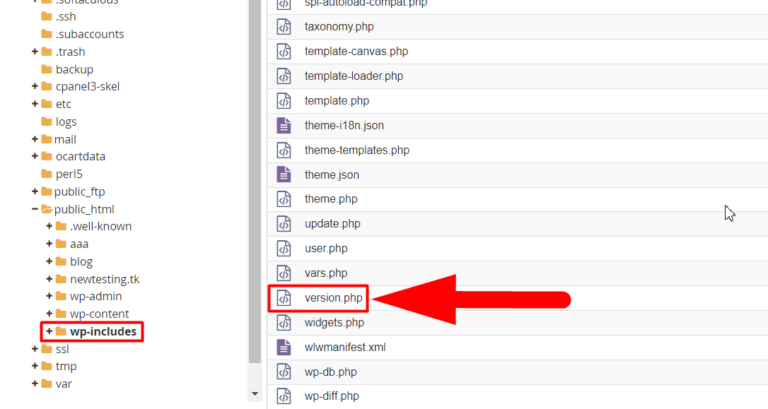
There you can clearly see the current WordPress version.
These are the three easiest methods to check your current WordPress version. However, there are many other methods for doing the same thing but, for me, these three are the easiest ones.
The End! should you have any inquiries, we encourage you to reach out to the Vercaa Support Center without hesitation.
