Database Management with Ease: Exploring phpMyAdmin in cPanel

thumb_up 1  ·  sell cPanel phpMyAdmin usage, Managing databases using phpMyAdmin in cPanel, Database administration with cPanel's phpMyAdmin

The phpMyAdmin is a third-party tool to manage tables and data inside a database. It is graphical user interface to manage MySQL databases. You can manually create Tables, Import and Export data or edit the values of a row through it.

To access phpMyAdmin, click on the phpMyAdmin link, which can be found under the databases section of cPanel Home.



You will see a dashboard similar to this.
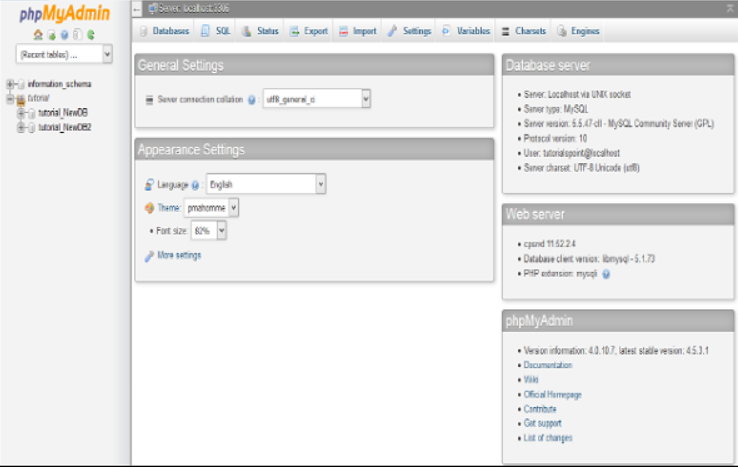


On the left hand pane, there is a list of databases, which can be expended to see the table in each database. On the right hand pane, there is general information of Database server.

Execute an SQL Query

To execute an SQL Query on a database, we will need to perform the following steps −

Step 1 − Select the database from left pane by clicking over the name of the database. Once the database is selected, it will show you the structure of the database.

Step 2 − Click on SQL from top bar to open SQL editor.



Step 3 − Write your query into the SQL editor. You can also enter multiple queries, separated by semicolon (;).
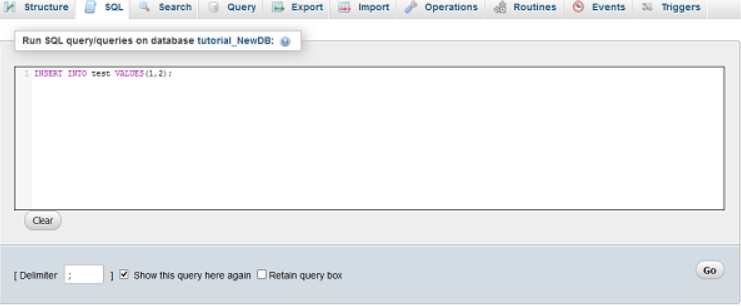
 

Step 4 − Click Go button to execute the query. If the query is executed successfully, you will get a success message.

The End! should you have any inquiries, we encourage you to reach out to the Vercaa Support Center without hesitation.

Was this answer helpful?

Related Articles

description

How to Transfer Your Main Domain to Another cPanel as an Add-on Domain Safely and Without Data Loss

Here, in this tutorial, we will discuss the procedure to move primary domain to a different cPanel as an add-on domain without losing data.…

arrow_forward
description

How to Modify the Admin Password in AbanteCart

AbanteCart is a free E-Commerce solution that allows user to create and manage E-commerce website. Here, in this tutorial we will discuss…

arrow_forward
description

Modifying the Admin Password in OpenCart

Here, in this tutorial we will discuss the procedure to change OpenCart Admin Password. We have shared articles related to installation of…

arrow_forward
description

How to Monitor cPanel/WHM User Activities from WHM Root?

Login to WHM with root access. Navigate to Plugins section and select ConfigServer Security & Firewall.     On the next…

arrow_forward
description

Modifying WordPress Site's CSS File via cPanel

Login to cPanel associated with your WordPress website. Go inside File Manager section and then get into WordPress installation.…

arrow_forward
arrow_back « Back