This feature of cPanel allows your website to load from another domain. When a user enters the Alias Domain or Parked Domain to access the website, the cPanel automatically redirects them to your main domain and load the main website.
For Example, consider your main domain is www.mymaindomain.com and you have also bought www.myanotherdomain.com and www.mymaindomain.in, and you want to display your same website to these other domains, you have also bought. There is no need to purchase separate hosting for these domains and copy the website to these domains. You can use cPanel Aliases to point these domains to your main domain.
Create an Alias
To create an alias, you will need to follow these steps −
Step 1 − Open cPanel Aliases by clicking on the Aliases link found in Domains Section of cPanel Home.

Step 2 − In the Aliases section, you will see Create New Alias, fill your domain in the text box.
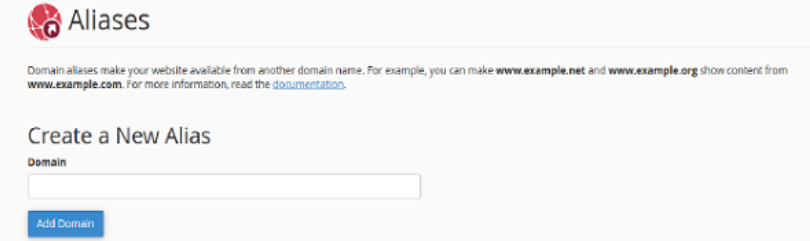
Step 3 − Press Add Domain button to add an alias, if successful you will see a success message.
Note − 1. Domain must be registered already. 2. Domain’s Nameservers must be configure to point at your cPanel account.
Remove Aliases
To remove alias created before, you need to follow these steps −
Step 1 − Navigate to Remove Aliases Section, which can be found under Remove Aliases.
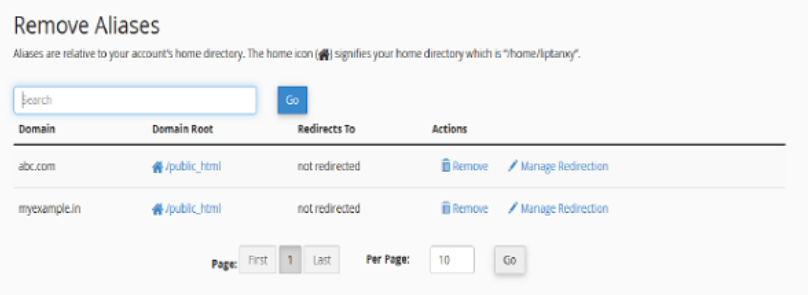
Step 2 − Click on the Remove link from Actions corresponding to the Domain you want to remove and you will see the following remove prompt.
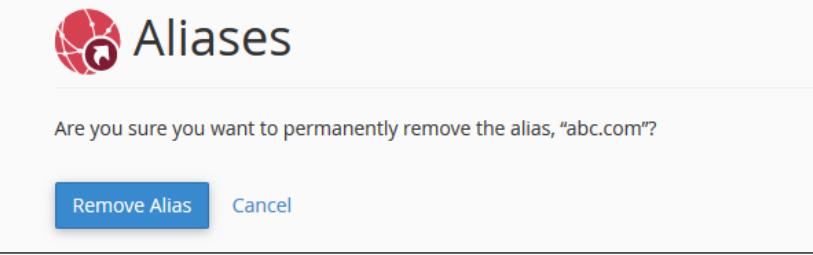
Step 3 − Click on Remove Alias Button, if successful you will see a success message.
