Addon Domains are addition domains hosted in your account, stored in subfolders. System treats these domains as a subdomain to your system. If you want to run a whole different website under the same hosting plan, you can use this feature of cPanel. It is the best option to run multiple websites on a single cPanel account. For example, you have a hosting for blogging website, and you want a different website for your CV, you will not need to purchase a different hosting account, but you can use the same hosting for your CV website.
To use this feature, you will need to click Addon Domains link under your Domains section from cPanel Home.
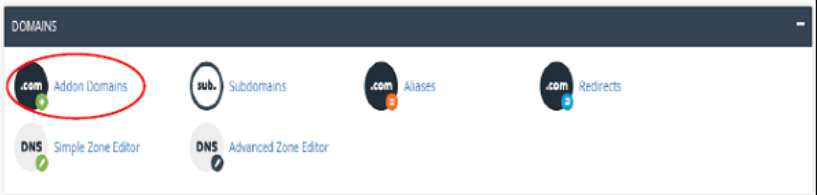
In Addon Domains interface, you can do the following tasks.
Create an Addon Domain
To create an Addon Domain, follow these steps −
Step 1 − Find Create an Addon Domain section in Addon Domains, as shown below.
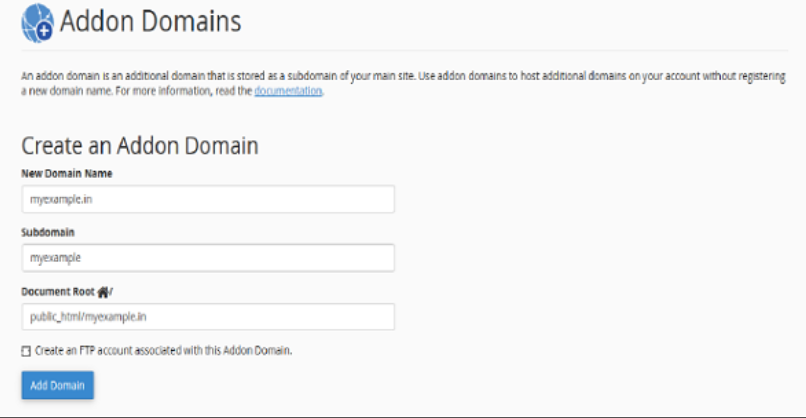
Step 2 − Fill your domain name in New Domain Name textbox.
Step 3 − Subdomains and Document Root will be automatically filled. Then you can leave the setting as it is or you can change them according to your need.
Step 4 − You can create an FTP account, which will be associated with the Addon Domain. To create an FTP account, select the checkbox on which Create an FTP account associated with this domain is written.
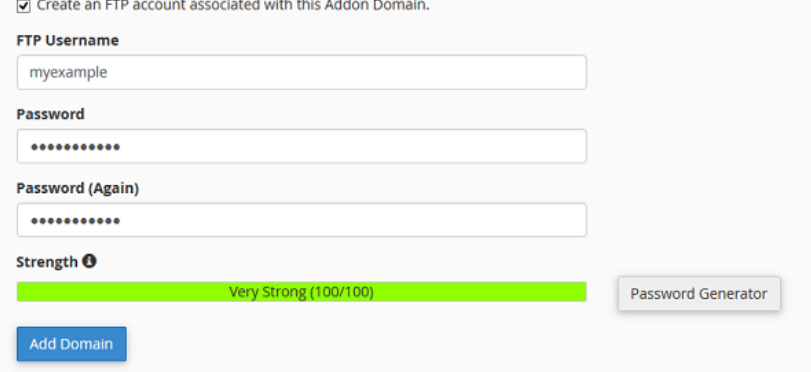
Step 5 − Enter FTP Username and Password to create an FTP account.
Step 6 − Click on the button “Add Domain”, if no error occurs, you will get a success message

Remove an Addon Domain
To remove an Addon Domain, Scroll down to “Modify Addon Domain” Section and press remove link from Actions corresponding to the Addon Domain.

The End! should you have any inquiries, we encourage you to reach out to the Vercaa Support Center without hesitation.
